What the History API changes
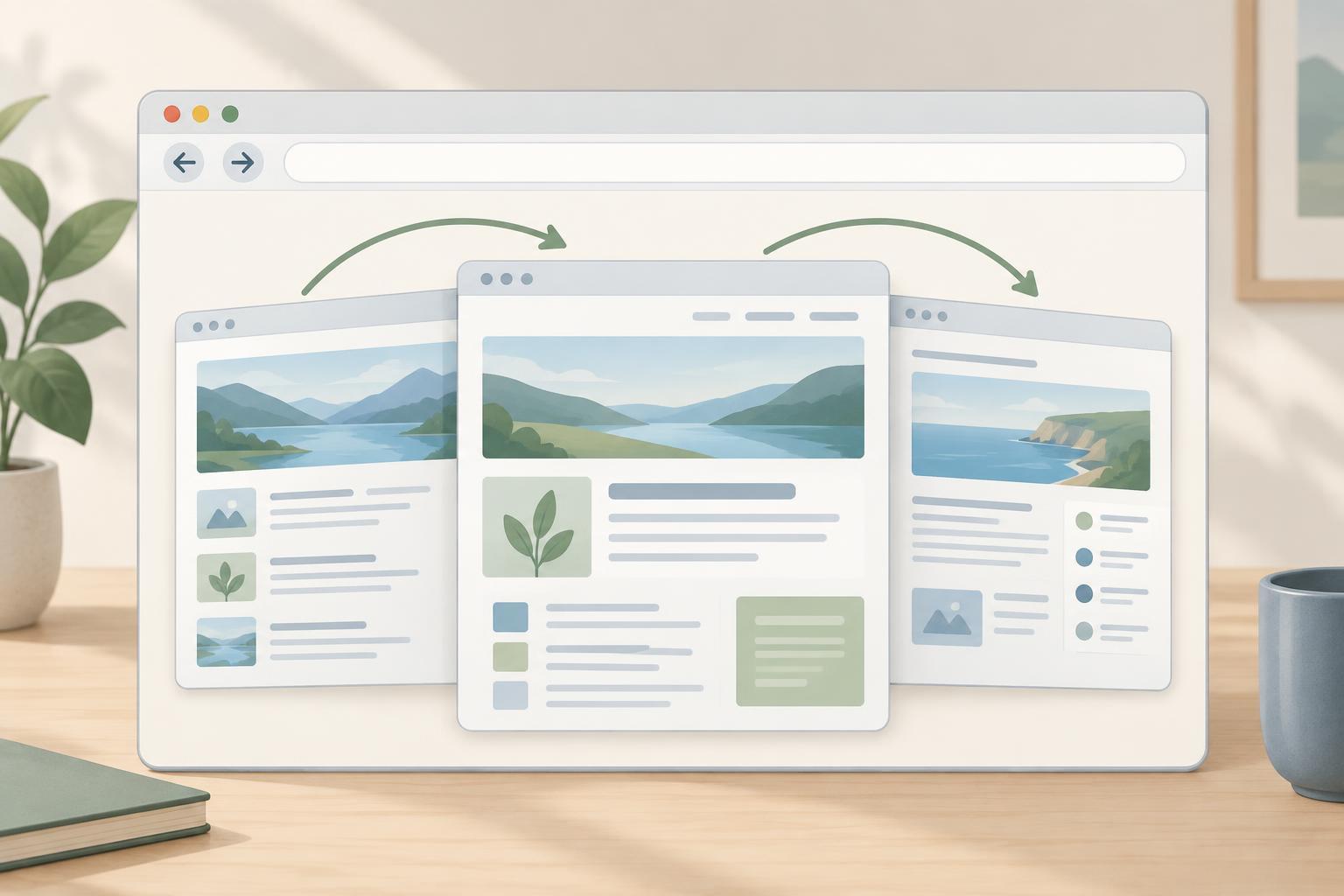
The History API lets a page change its address-bar URL without loading a new document. This is useful when an interface displays different views within one page: the URL can identify the current view, and visitors can use Back and Forward to revisit earlier ones. The API changes the browser’s session history; it does not fetch content or update the visible interface. Your code must do that work.
Use history.pushState(state, "", url) when moving to a new view that should become a separate history entry. Use history.replaceState(state, "", url) when updating the current entry, such as correcting an initial URL or attaching state to the entry already on screen. The URL must be on the same origin as the current page. The state value can hold structured-cloneable data, but it is best kept small: store an identifier rather than an entire rendered view.
Neither method triggers a popstate event. After calling pushState or replaceState, render the new view yourself. A popstate event is relevant when the active history entry changes through navigation such as Back or Forward.
A small, reproducible example
Try this in a browser with a local development server serving one page at /, /a and /b. The server must return that page for all three paths, including on a direct visit or reload. Add a display element with id="view" and two buttons with ids "a" and "b". Then run the following JavaScript after those elements exist:
const view = document.getElementById("view"); const pages = { "/": "Home", "/a": "Page A", "/b": "Page B" }; function render() { const page = pages[location.pathname] ?? "Not found"; view.textContent = page; document.title = page + " | Demo"; } function navigate(path) { if (location.pathname === path) return; history.pushState({ page: path }, "", path); render(); } history.replaceState({ page: location.pathname }, "", location.href); document.getElementById("a").addEventListener("click", () => navigate("/a")); document.getElementById("b").addEventListener("click", () => navigate("/b")); window.addEventListener("popstate", render); render();
Starting at /, click the buttons and watch both the displayed text and URL change. Then use Back and Forward. The popstate listener calls render(), which reads the path of the newly active entry. The initial replaceState call associates state with the starting entry, although this example renders from location.pathname and does not need to read that state. Its main purpose here is to show how an initial entry can be prepared.
Keep the URL and the view in agreement
A URL is most useful when opening it directly produces the same view as navigating to it inside the app. On startup, render from location rather than assuming everyone arrived at /. On the server, configure a fallback for client-rendered paths or serve an appropriate page for each path. Otherwise, in-app navigation may appear to work while reloading /a produces a server error.
Decide which parts of the URL identify a view. This example uses pathname alone, so it ignores query parameters and fragments. If a search filter belongs in the URL, parse location.search and include it when rendering. If you store extra information in history.state, remember that an entry reached from outside your code may have null or unexpected state. Treat the URL as the shareable description of the view and validate any state before using it.
You may also need to manage scroll position when switching views. Browsers can restore scroll positions during history navigation, while a newly pushed view may inherit the old position. Test the behavior you want before adding manual scrolling or changing history.scrollRestoration.
Preserve the behavior people expect from navigation
Changing a view is more than changing its URL and text. Update the document title, as the example does, so the current view is identifiable in the browser. For a larger interface, give the new view a clear heading and consider where keyboard focus should move after an in-app navigation. Announcing or focusing the new content may help people who do not rely on the visual change alone; choose a focus strategy that fits the interaction.
Use real links for destinations whenever possible. A link with an href remains usable if JavaScript fails and supports familiar actions such as opening a new tab. You can intercept an ordinary same-origin click to render in place, while leaving modified clicks and other browser behaviors alone. The buttons in the example keep the mechanics short, but they are not a substitute for links in a navigable site.
Finally, remember the boundary of this API: it manages history entries, not routing, data loading or accessibility automatically. A reliable implementation gives each URL a meaningful view, renders after both programmatic changes and history traversal, and checks that direct visits work.