Start with the job the content needs to do
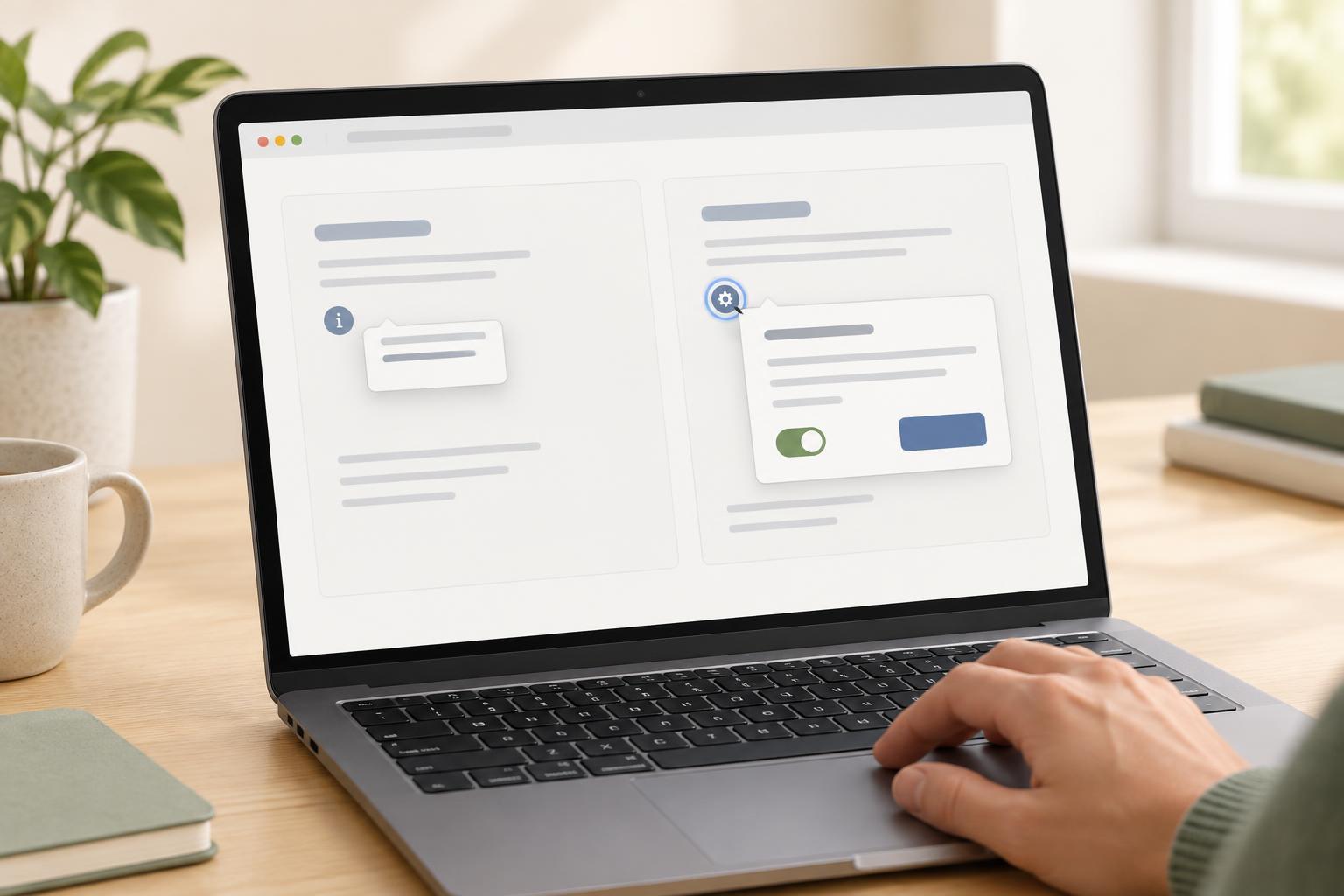
A tooltip provides a short explanation of something already on the page, such as the meaning of an unfamiliar icon. It appears in response to hover or keyboard focus and contains no controls. The underlying button or link remains the thing the user interacts with.
A popover is a small, separately opened area for content that needs more room or attention. It may contain links, buttons, or form controls. A person explicitly opens it, can move focus into it when needed, and has a way to close it. Neither pattern should hide information required to understand or complete a task: if everyone needs the text, put it on the page.
Before building either pattern, ask what happens after the user reads the content. If the answer is simply “continue using the original control,” a tooltip may fit. If the answer is “read several sentences, follow a link, or make a choice,” use a popover or another clearly presented section.
Keep tooltips brief and noninteractive
A tooltip might clarify a compact control labeled “Copy” with the text “Copy the code to your clipboard.” It should not be the control’s only accessible name. Give the control an understandable label, then use the tooltip for supplementary description. For example, a button can have aria-describedby pointing to an element with role="tooltip". Avoid putting links or buttons inside that element: a tooltip is not a place where users should have to move focus.
Hover alone is insufficient because keyboard users do not hover. Show the tooltip when its trigger receives focus as well. Do not make it vanish so quickly that someone cannot read it or move the pointer onto the tooltip itself. Provide a way to dismiss it without moving focus or the pointer, commonly the Escape key. Position it so it does not cover the trigger or other essential content.
For a reproducible interaction check in a browser, create a labeled button and a nearby description element, then show the description on pointer entry or button focus. Keep it visible while the pointer is over either the trigger or the description; hide it when the pointer leaves both, focus moves away, or Escape is pressed. Test those transitions with a mouse and with Tab and Escape. If the description grows beyond a short phrase or sentence, reconsider the pattern.
Use a popover when people need to act on the content
Consider a “Formatting help” button beside a text field. If help consists of a few examples and a link to fuller instructions, a popover lets readers inspect the examples and reach the link. Give the opening button a meaningful label rather than relying on a small question-mark icon. If the content is substantial or part of a required workflow, an inline help section may be easier to find and use.
Here is a minimal example for a browser that supports the HTML popover attribute and popovertarget controls. Put these elements in an HTML document: <button type="button" popovertarget="format-help">Formatting help</button> <div id="format-help" popover><p>Use a blank line to separate paragraphs.</p><button type="button" popovertarget="format-help" popovertargetaction="hide">Close help</button></div>. The first button opens the popover; the second provides an explicit close control. An automatically managed popover can also be dismissed with Escape or by clicking outside it in supporting browsers.
The popover attribute supplies display behavior, not a complete accessibility meaning for its contents. Keep the trigger understandable, use appropriate semantic elements inside, and check whether keyboard focus reaches any interactive content in a sensible order. If opening a panel must move focus into a structured task and keep it there until completion, evaluate a dialog instead of assuming that every floating panel is a popover.
Test the choice, not just the appearance
Try each pattern at a narrow viewport and with enlarged text. A floating box should remain readable without covering the very content it explains. Check that it does not appear only when a mouse is used, that its text is understandable without depending on color or position, and that closing it returns the user to a predictable place. Test with a keyboard before adding animation or elaborate placement rules.
The useful distinction is behavioral: a tooltip briefly describes a trigger, while a popover presents content people intentionally open and may interact with. Choose the simplest pattern that supports the actual task, then verify its opening, reading, focus, and dismissal behavior.