What the browser lets you read
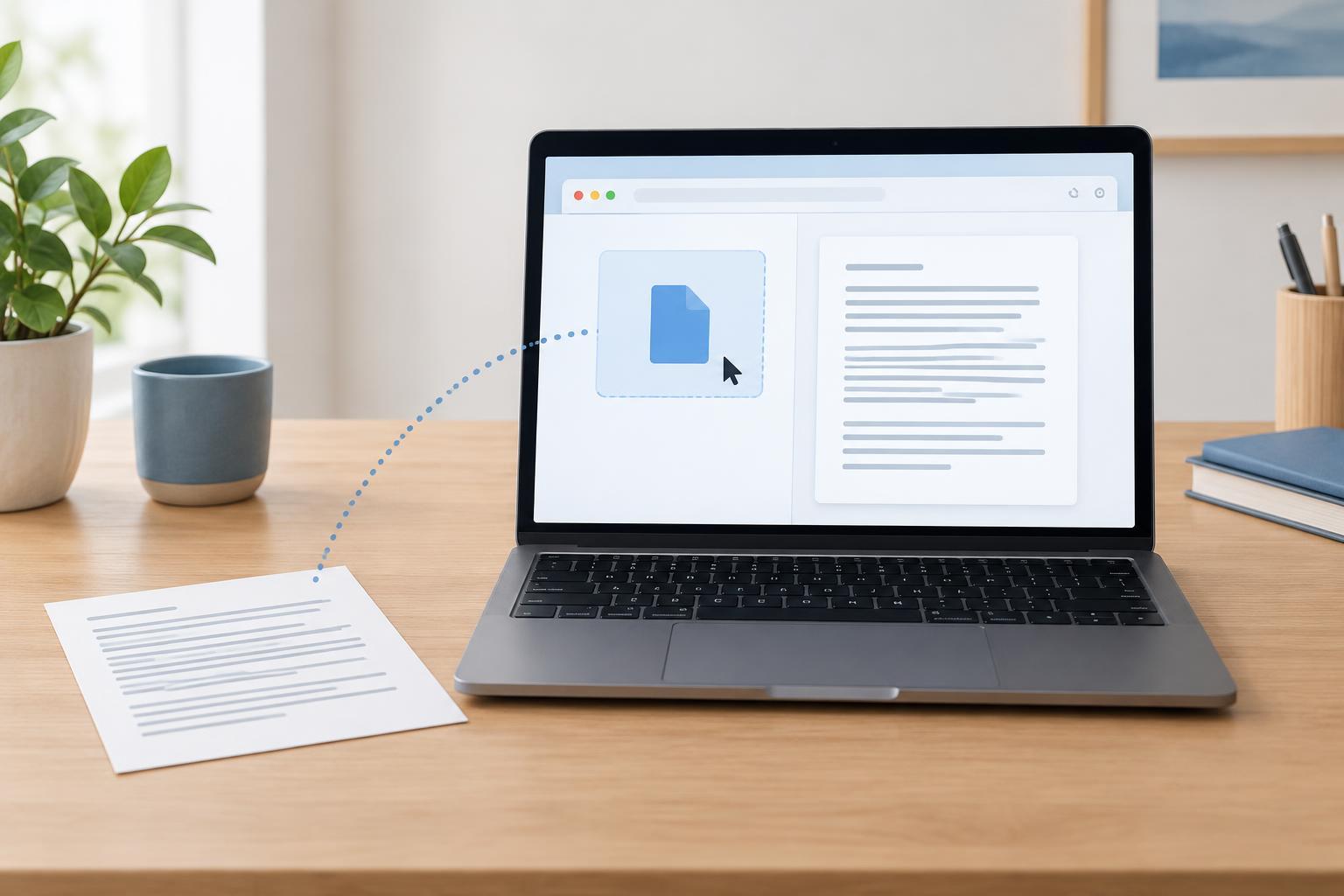
A web page cannot generally browse a visitor’s files on its own. It can, however, receive a File object when the visitor selects a file through a file input. That object provides information such as the file’s name, size in bytes, and reported media type, along with methods for reading its contents. This makes local previews and import checks possible without requiring an upload.
Reading and uploading are separate actions. Calling file.text() reads the selected file in the browser; it does not send the contents to a server. An upload would require an additional action, such as submitting a form or making a network request. If your interface handles private material, explain what it does with the contents and avoid retaining or displaying more than needed.
Try a text-file preview
This example runs in the developer console of a modern desktop browser on an ordinary web page. It creates a file picker and a preview area, so no project setup is required. Paste the following JavaScript into the console, then choose a small plain-text file:
const input = document.createElement('input'); input.type = 'file'; input.accept = '.txt,text/plain'; const preview = document.createElement('pre'); document.body.append(input, preview); input.addEventListener('change', async () => { const file = input.files?.[0]; if (!file) { preview.textContent = ''; return; } if (file.size > 1_000_000) { preview.textContent = 'Choose a file smaller than 1 MB.'; return; } preview.textContent = 'Reading…'; try { const text = await file.text(); preview.textContent = text; } catch { preview.textContent = 'Could not read this file.'; } });
After selection, the change handler obtains the first File from input.files. It checks the size before reading, then awaits file.text() and places the result in the preview. Assigning to textContent displays the file as text rather than interpreting it as page markup. The catch block provides a message if reading fails. Nothing in this example submits a form or makes a network request.
The accept setting helps the picker present likely text files, but it is not a guarantee about what the visitor selects or what the file contains. The example deliberately handles just one file. If you add the multiple attribute, process the File objects as a collection and decide how many files your interface can reasonably preview.
Choose a reading method that fits the content
File inherits from Blob, whose text() method is convenient when the whole file is reasonably small and expected to contain text. It resolves to a JavaScript string, which is why the example can assign the result directly to textContent. A file’s extension and reported media type are useful hints, not proof of its encoding or format. Text that appears garbled may need a known encoding and a different decoding approach.
For binary formats, do not assume text() will give meaningful results. Depending on what you are building, arrayBuffer() can provide bytes for parsing, while URL.createObjectURL(file) can provide a temporary URL for a suitable browser preview. Revoke an object URL when it is no longer needed. For larger files, reading everything into one string may use too much memory; consider a streaming or incremental approach suited to the format instead of simply raising the size limit.
Make local handling clear and predictable
The file input gives the visitor a clear selection step. Keep the size check and error message close to the preview, and make sure the interface says what kinds of files it expects. In a finished page, use a visible label for the input and provide status messages that assistive technology can announce. If a visitor selects another file while an earlier read is still in progress, a more complete implementation should prevent the earlier result from replacing the newer preview.
Treat selected content as potentially sensitive even when it never leaves the browser. Avoid copying it into analytics, error reports, console logs, or persistent browser storage unless that behavior is necessary and clearly explained. A local preview is useful precisely because selection, reading, display, and any later upload can remain distinct decisions.