Start with meaning, then add layout
A page can look orderly while its underlying structure says very little. A large, bold line made from a generic container may resemble a heading, but it does not provide the same heading structure as an actual heading element. Semantic HTML describes what content is and what a control does. CSS describes how it looks. Keeping those jobs separate makes a page easier to navigate, maintain, and restyle.
Before choosing an element, ask what role the content plays. Is it the main subject of the page, a navigation area, a collection of related items, or an action someone can take? Choose an element for that role rather than for its default appearance. You can adjust spacing, color, and typography later without changing the meaning.
The examples below assume a static HTML page opened in a modern desktop browser, with no framework or JavaScript required. You can apply the same decisions inside a component-based interface: a component's name does not replace the semantics of the HTML it renders.
Give the page a recognizable outline
For a typical article page, use header for introductory page content, nav for a major set of navigation links, main for the page's primary content, and footer for closing information. These elements help identify broad regions. A page generally needs one main region for its primary content; repeated site navigation and footer material belong outside it. A header or footer can also belong to a particular article or section, so its meaning depends partly on where it appears.
Within main, use article for content that stands on its own, such as a tutorial or news item. Use section when a grouping has a distinct topic, usually introduced by a heading. Do not wrap every paragraph in a section merely to create a styling hook; a generic container is appropriate when the grouping has no special meaning.
Build a heading sequence that reflects the content. Give the page's primary topic a clear heading, then use lower-level headings for its parts and their subsections. Avoid picking a heading level because its default font size looks right. If a subsection needs smaller text, style its heading with CSS while keeping its place in the outline.
Match collections and actions to their purpose
Related items often have a natural structure. Use a list for a sequence of steps, a group of resources, or a set of navigation links. Choose an ordered list when sequence matters and an unordered list when it does not. Use a table for information whose row and column relationships matter, not simply to arrange elements on a grid.
A link takes someone to another location, whether that is another page or a point on the same page. A button performs an action on the current interface, such as opening a menu or submitting a form. Avoid making a generic container clickable when a link or button fits: native controls already support keyboard interaction and communicate their purpose.
Consider a card that shows a tutorial title, summary, and a way to open the tutorial. Make the destination a link with descriptive text, such as the tutorial title. If the card also has a control to save the tutorial, make that a separate button. Styling can make both controls fit the card without making the entire card an ambiguous collection of click targets.
Make forms and media understandable in context
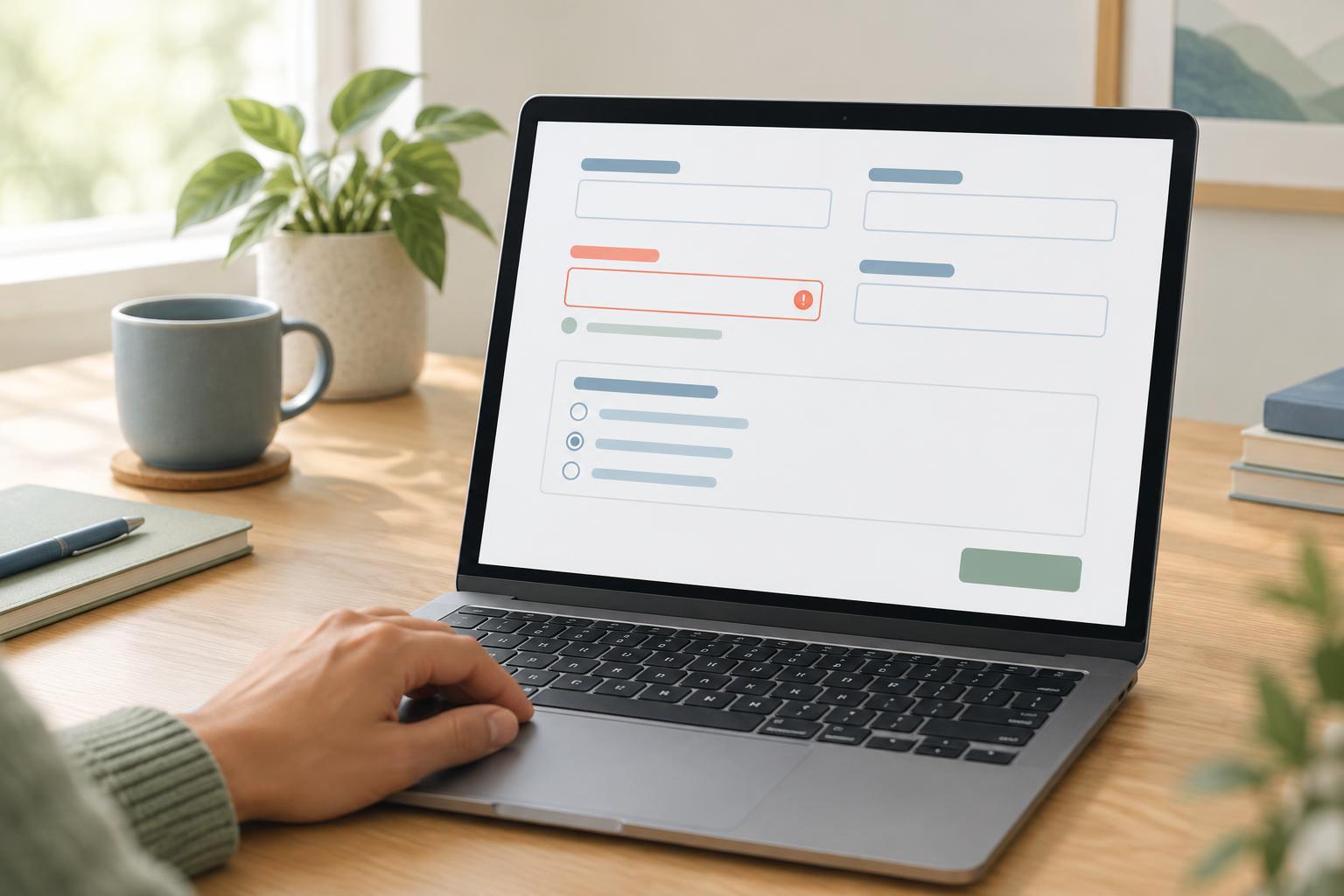
A form field needs a name that remains clear when someone focuses the field without seeing the surrounding layout. Associate a visible label with its input rather than relying on placeholder text as the only explanation. When several controls answer one question, group them with fieldset and give the group a legend. Use the input type that matches the expected value where appropriate, while remembering that client-side input behavior does not replace helpful instructions or validation.
Images also need a deliberate text alternative. If an image conveys information, its alternative text should express its purpose in that context rather than repeat nearby prose. If it adds no information and is purely decorative, an empty alternative avoids unnecessary repetition. For a figure discussed in the article, figure and figcaption can connect the media with its caption.
These choices work best together. A well-named field inside a clearly headed form section is easier to understand than a correctly labeled input placed in a confusing page structure.
Check the structure without its visual cues
Try a small review on the static page described earlier. First, scan the headings alone: do they describe the page's topics in a sensible order? Next, identify the navigation and main content without using color or position as clues. Then use the Tab key to move through links, buttons, and fields. Each focused item should have an understandable name and a purpose that matches what happens when you activate it.
Finally, temporarily remove or disable your custom CSS in the browser. The page need not remain attractive, but its reading order, lists, headings, and controls should still make sense. This check does not replace testing with assistive technology or people who use it, but it can reveal places where presentation is carrying meaning that belongs in the HTML. When you find one, fix the element or document structure before adding more styling.