Why use requestAnimationFrame?
An animation loop changes something on screen, then schedules the next change. For browser-based motion, requestAnimationFrame asks the browser to run a callback before an upcoming repaint. Unlike a fixed timer, it does not promise a particular number of callbacks per second. That makes it a useful scheduling tool for visual updates, but not a clock for measuring how far an object should move.
A callback runs once. To keep animating, it must request another frame. Browsers may slow or pause these callbacks when a page is not visible, so an animation should not assume that every frame arrives after the same delay. Instead, use the timestamp passed to the callback to calculate elapsed time.
Try a self-contained loop
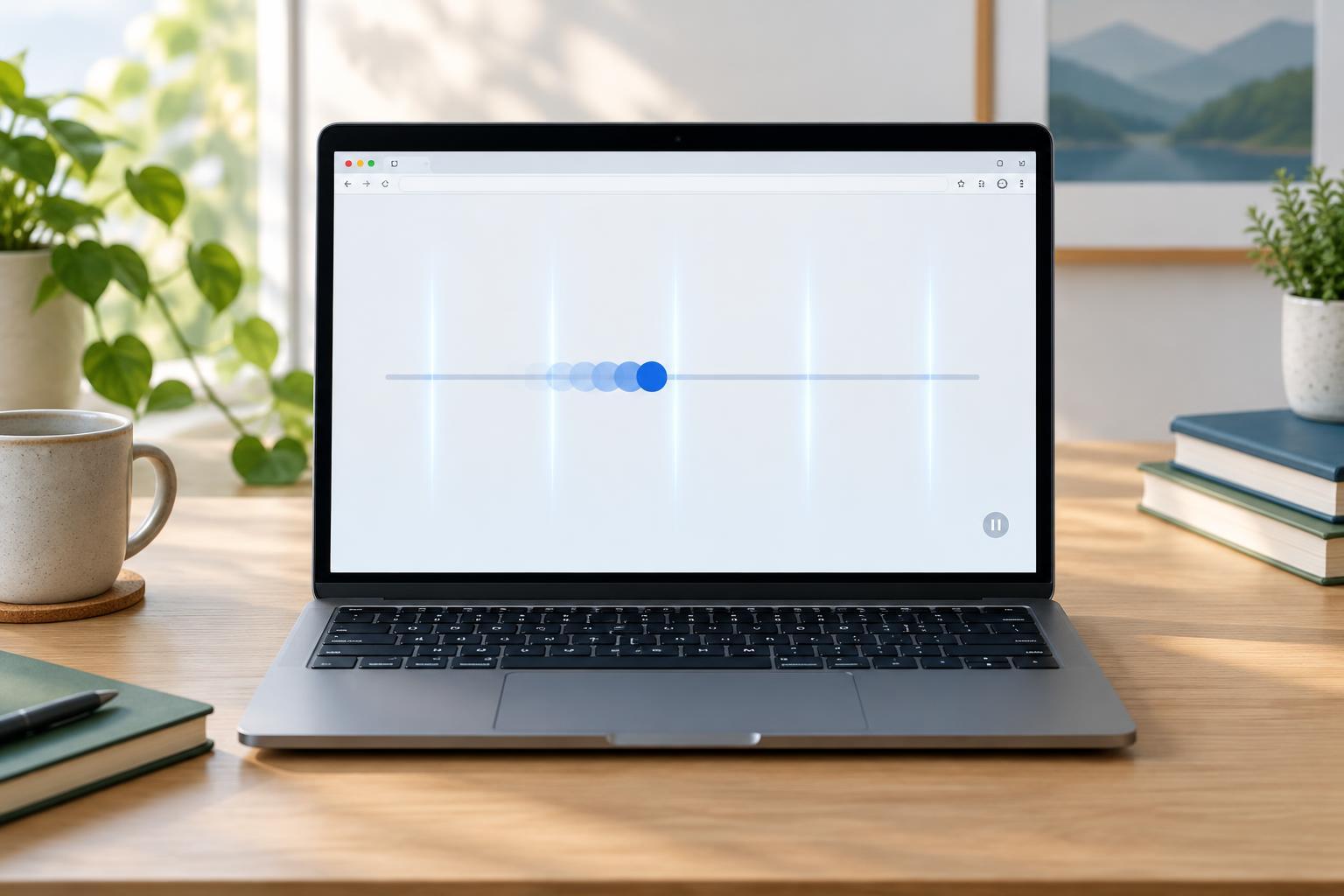
The following example needs only a modern browser. Open a page, paste the JavaScript into its developer console, and press the button it creates. The square moves back and forth inside a track. Press the button again to stop it. If you run the example more than once, each run creates a separate track and button.
const track = document.createElement('div'); track.style.cssText = 'position:relative;width:320px;height:48px;border:1px solid #555;overflow:hidden;margin:12px 0'; const box = document.createElement('div'); box.style.cssText = 'width:40px;height:40px;background:#1769aa'; box.setAttribute('aria-hidden', 'true'); track.append(box); const button = document.createElement('button'); button.textContent = 'Start animation'; document.body.append(button, track); let frameId = null; let previousTime = null; let x = 0; let direction = 1; const limit = 280; const speed = 120; // pixels per second function frame(time) { if (previousTime === null) previousTime = time; const seconds = Math.min((time - previousTime) / 1000, 0.05); previousTime = time; x += direction * speed * seconds; if (x >= limit) { x = limit; direction = -1; } else if (x <= 0) { x = 0; direction = 1; } box.style.transform = `translateX(${x}px)`; frameId = requestAnimationFrame(frame); } button.addEventListener('click', () => { if (frameId !== null) { cancelAnimationFrame(frameId); frameId = null; previousTime = null; button.textContent = 'Start animation'; } else { previousTime = null; frameId = requestAnimationFrame(frame); button.textContent = 'Stop animation'; } });
The button is a native control, so it can be operated with a keyboard. The square is marked as decorative because its position does not convey information. For an interface where movement communicates progress or status, provide that information in an accessible form rather than relying on motion alone.
Let elapsed time determine distance
The callback receives a timestamp in milliseconds. Subtracting the previous callback’s timestamp gives the elapsed time between updates; dividing by 1000 converts it to seconds. Multiplying that interval by a speed in pixels per second determines how far the square moves. A faster or slower sequence of callbacks can therefore produce roughly the same travel over a given amount of time.
The first callback sets the previous timestamp before calculating movement, making its initial interval zero. The example also caps each interval at 0.05 seconds. If callbacks are delayed, the square will not suddenly jump a large distance. This is a choice for a small visual animation, not a universal rule: a simulation that must account for all elapsed time needs a different strategy.
Keep scheduling and stopping predictable
Each callback changes the square’s transform and then requests the next frame. The returned request ID is stored so the button can cancel the pending callback. The same ID also acts as a simple running-state check, preventing repeated clicks on Start from creating overlapping loops. Resetting the previous timestamp on a stop means a later restart will not include the paused interval in its movement calculation.
Using transform for this movement avoids repeatedly changing the square’s layout position. That can be a helpful choice for simple visual motion, although actual rendering performance depends on the page and device. Keep expensive calculations and unnecessary DOM reads out of a frequently called callback.
Plan for inactive pages and reduced motion
A background tab may receive few or no animation callbacks. In this example, the elapsed-time cap limits the jump when callbacks resume. For a larger component, decide explicitly whether it should resume, reset, or remain stopped after a page becomes hidden. The document visibilitychange event can help you apply that decision.
Not everyone wants decorative movement. A production component should consider the user’s prefers-reduced-motion setting and offer a static presentation or reduced-motion alternative where appropriate. requestAnimationFrame controls when updates are requested; it does not decide whether an animation is necessary or comfortable.