Start with a move that works without dragging
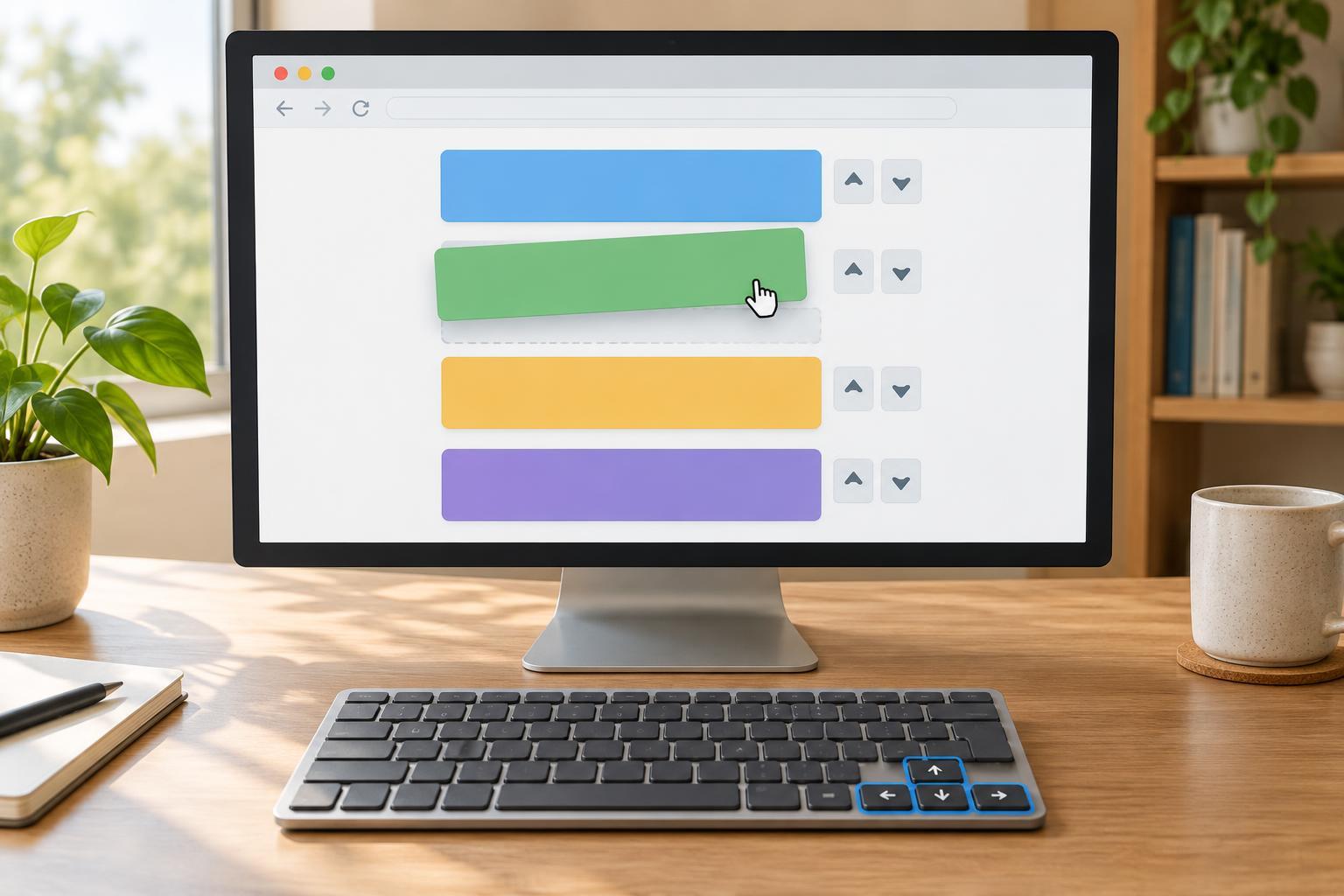
Dragging can be convenient, but it should not be the only way to change a list’s order. Give each item visible Up and Down buttons. People can activate those buttons with a pointer, touch, Enter, or Space, while people who prefer dragging can use the same list. This avoids inventing a special keyboard gesture that users must discover.
Keep the items in an array with stable IDs. Treat each requested move as an insertion into a slot in that array: a slot can be before an item, after an item, or at the end. One move function can then handle both button clicks and drops. Disable a button when its move is impossible, and announce successful moves so the result is not conveyed by position alone.
Build the list in the browser
The following example uses plain JavaScript and browser DOM APIs. Run it in a modern desktop browser’s console after the page has loaded. It creates its own list, so it needs no library, stylesheet, or existing page markup. Native drag-and-drop is used for the pointer interaction; the buttons remain available when dragging is impractical.
const items = [ { id: 'a', label: 'Sketch' }, { id: 'b', label: 'Review' }, { id: 'c', label: 'Publish' } ]; const list = document.createElement('ol'); const status = document.createElement('p'); status.setAttribute('role', 'status'); document.body.append(list, status); function move(id, slot, focusStep = 'up') { const from = items.findIndex(item => item.id === id); if (from < 0) return; const bounded = Math.max(0, Math.min(slot, items.length)); const to = from < bounded ? bounded - 1 : bounded; if (to === from) return; const [item] = items.splice(from, 1); items.splice(to, 0, item); render(); status.textContent = `${item.label} moved to position ${to + 1} of ${items.length}.`; const row = [...list.children].find(node => node.dataset.id === id); row.querySelector(`[data-step="${focusStep}"]`).focus(); } function render() { list.replaceChildren(); items.forEach((item, index) => { const row = document.createElement('li'); row.dataset.id = item.id; row.draggable = true; const name = document.createElement('span'); name.textContent = item.label; row.append(name); for (const [step, delta] of [['up', -1], ['down', 1]]) { const button = document.createElement('button'); button.type = 'button'; button.textContent = step === 'up' ? 'Up' : 'Down'; button.setAttribute('aria-label', `Move ${item.label} ${step}`); button.dataset.step = step; button.disabled = index + delta < 0 || index + delta >= items.length; button.addEventListener('click', () => move(item.id, delta === 1 ? index + 2 : index - 1, step) ); row.append(' ', button); } row.addEventListener('dragstart', event => { event.dataTransfer.setData('text/plain', item.id); event.dataTransfer.effectAllowed = 'move'; }); row.addEventListener('dragover', event => { event.preventDefault(); event.dataTransfer.dropEffect = 'move'; }); row.addEventListener('drop', event => { event.preventDefault(); const rectangle = row.getBoundingClientRect(); const after = event.clientY >= rectangle.top + rectangle.height / 2; move(event.dataTransfer.getData('text/plain'), index + (after ? 1 : 0)); }); list.append(row); }); } render();
Understand how the two interactions meet
A button requests a move by one position. The Down button passes the slot after the next item; the Up button passes the slot before the previous item. The move function adjusts the insertion index when removing an item from earlier in the array would shift later slots left. It also ignores a drop that would leave the order unchanged.
During a drag, dragstart stores the item’s ID. Preventing the default dragover behavior allows a drop. The drop handler checks whether the pointer is above or below the hovered row’s midpoint, then requests the corresponding insertion slot. After a successful move, rendering updates the list, the status message states the new position, and focus returns to a button on the moved item. Stable IDs make that focus restoration possible even though rendering replaced the old nodes.
Check behavior before adding polish
Try moving the first item down, the last item up, and an item across several positions by dragging. Then use Tab to reach each button and activate it with Enter and Space. Confirm that the disabled buttons match the list boundaries, focus stays with the moved item, and the announced position matches the visible order. Test a drop in both the upper and lower halves of a row.
For a production interface, add a visible drag handle or clear instructions so the pointer interaction is discoverable. Provide a visible insertion indicator during dragging; otherwise the midpoint rule can be hard to predict. Keep the buttons usable rather than hiding the non-dragging route. If the reordered list must be saved, treat saving as a separate step and make any failure clear without silently reverting a user’s work.