Start with the path through the page
Keyboard navigation lets people reach and operate an interface without a pointer. In a typical desktop browser, Tab moves forward through focusable controls and Shift+Tab moves backward. Enter usually activates a focused link or button; Space commonly activates a button. Exact behavior can vary by browser, operating system, and control, so test the interface rather than relying on one memorized key sequence.
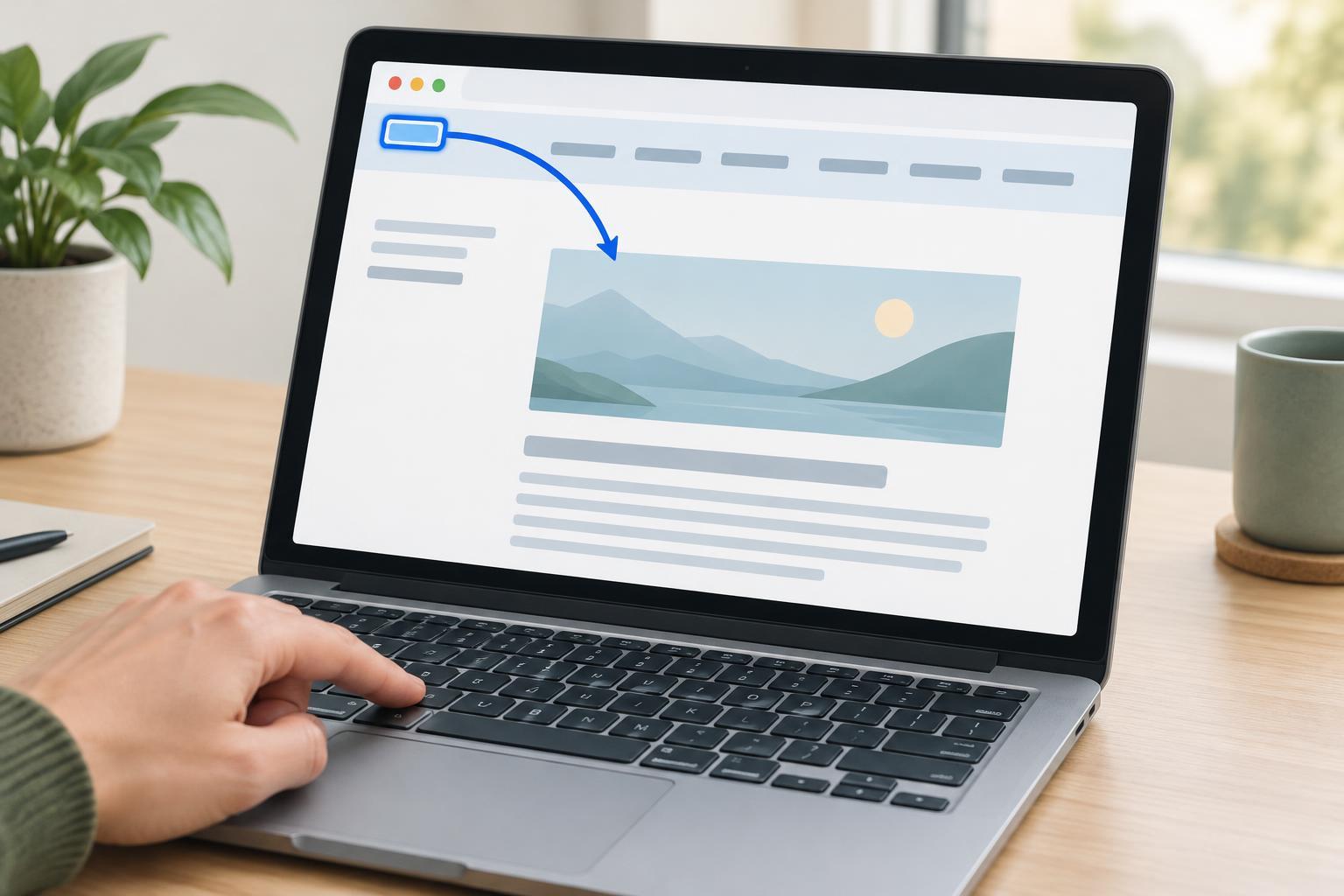
A useful baseline is a simple page with a navigation area, a main heading, a search field, a search button, and a link in the main content. Open it in a current desktop browser, click outside the controls, then move through the page with Tab and Shift+Tab. The order should make sense when read aloud: navigation links first, then the search controls, then the content link. This is a repeatable check you can apply to an existing page without special tools.
Let document order do most of the work
The most dependable tab order usually follows the order of interactive elements in the document. If a design places a button visually before a field while the document places it after the field, keyboard users may encounter an unexpected jump. Rearranging the underlying elements is generally better than trying to repair that mismatch with tabindex values. Visual layout and keyboard order should tell the same story.
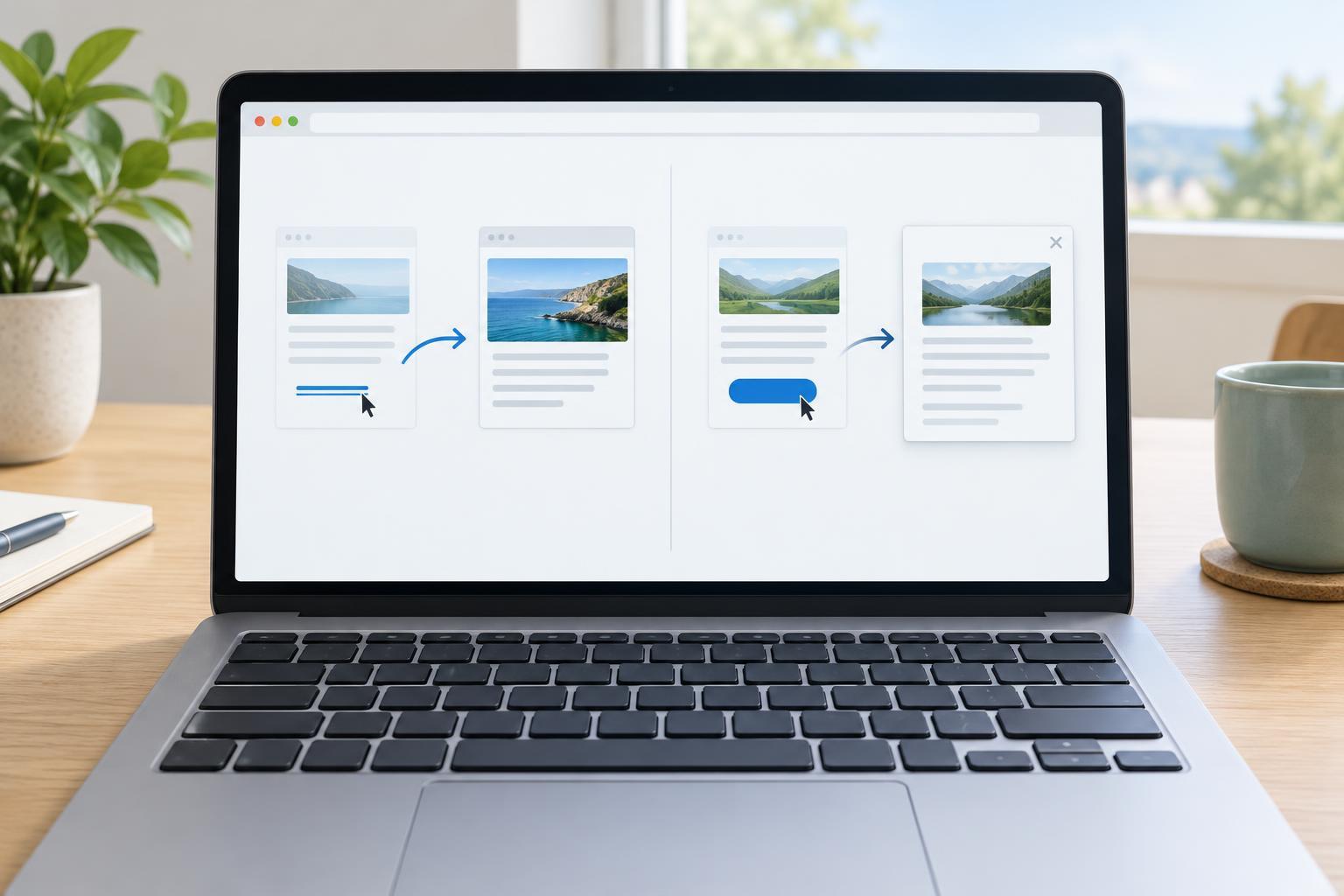
Use native links for navigation and native buttons for actions. They are focusable and come with expected keyboard behavior. Avoid adding a positive tabindex to force a custom sequence: it can pull one control ahead of everything else and become difficult to maintain as the page changes. A tabindex value of 0 can put a custom element into the normal sequence, but it does not give that element button or link behavior. A value of -1 allows scripted focus without adding an extra Tab stop, which can be useful for a destination such as a newly displayed message.
Make the current position unmistakable
As you Tab through the example page, pause at every control. Can you identify which one has focus without guessing from its position? A visible focus indicator might be an outline, border, underline, or other clear change that stands out against nearby content. Do not remove the browser’s default outline unless you provide a replacement that remains easy to see across the backgrounds where the control appears.
Focus and hover are different states. A pointer can hover over one control while keyboard focus is on another, so a hover-only treatment does not solve focus visibility. The CSS :focus-visible selector can help show an indicator when the browser determines it is needed, particularly during keyboard interaction. Check its behavior on text fields as well as buttons, and make sure your styling does not accidentally hide the indicator through clipping, low contrast, or an overlapping element.
Check what happens when the interface changes
Keyboard traps often appear in components that open, close, or update. A trap means someone can move focus into an area but cannot leave it using the keyboard. Test an expandable menu by opening it from its trigger, moving through its available controls, and closing it. After closing, focus should remain somewhere useful, usually on the trigger, rather than disappearing into content that is no longer shown.
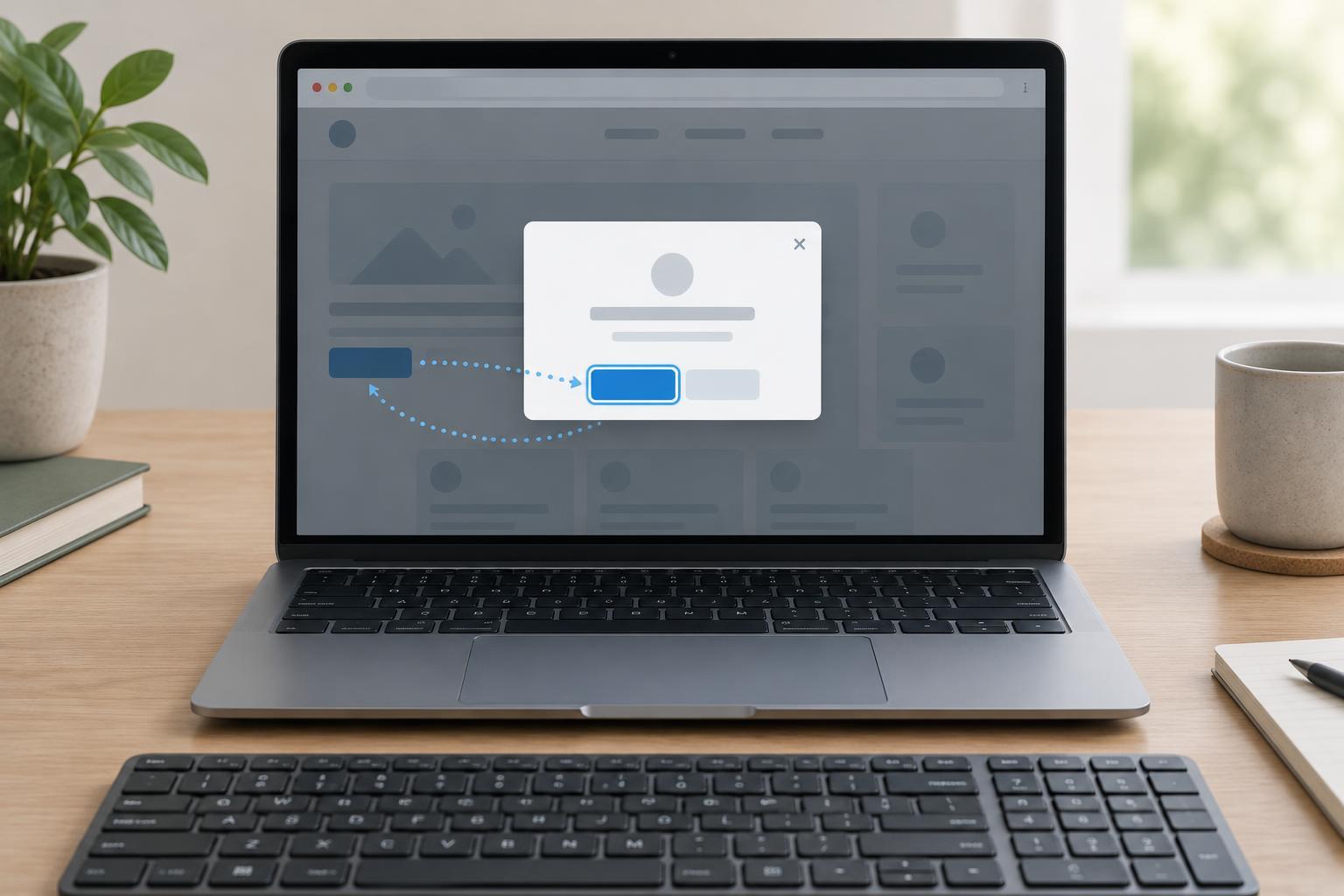
A modal dialog needs more deliberate focus management. When it opens, move focus into the dialog. While it is open, prevent focus from wandering to controls behind it; provide an obvious keyboard-operable way to close it. When it closes, return focus to the control that opened it when that control still exists. This is an intentional exception to ordinary page tabbing, not a reason to trap focus in everyday sections such as navigation or cards.
Run a short keyboard-only review
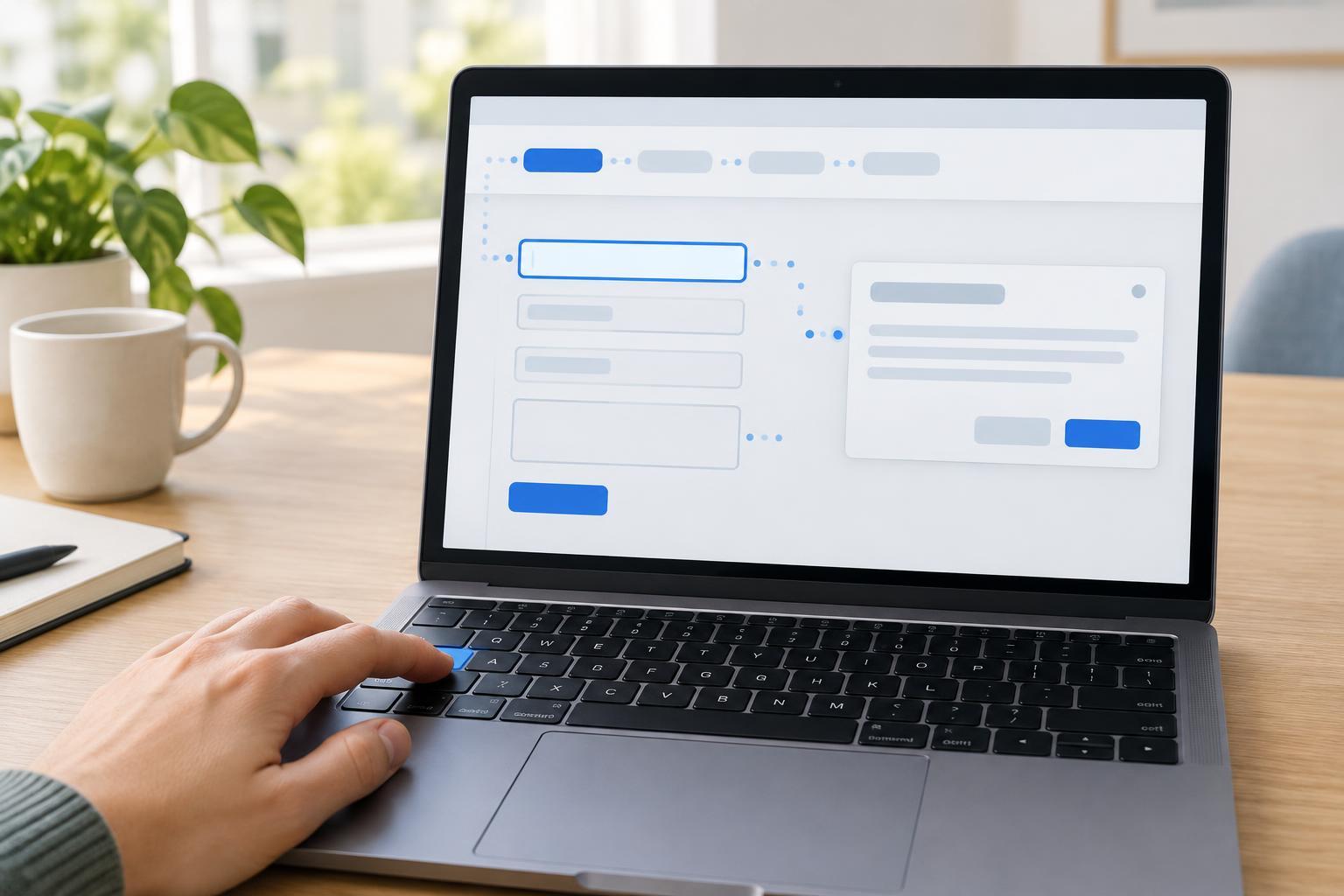
In a current desktop browser, reload the page and set the pointer aside. Tab from the beginning to the end, then reverse with Shift+Tab. At each stop, ask three questions: Is the focused item visible? Does its place in the sequence make sense? Can I operate it with the expected key? Repeat after opening any menu, dialog, disclosure, or form error message. Check that focus does not land on hidden controls or disappear after content is removed.
If a control seems to be skipped, first confirm that it is meant to be interactive, then check its native element, disabled state, and visibility. Browser and operating-system keyboard settings can affect which controls receive Tab focus, so note your test environment when sharing a bug report. A clear report names the starting control, the keys pressed, the observed destination, and the expected destination. That makes keyboard problems much easier to reproduce and fix.