Set up a repeatable test
Keyboard and screen reader testing answer related but different questions. A keyboard test asks whether someone can reach and operate controls without a pointer. A screen reader test asks whether the page communicates its structure, controls, state, and feedback through speech. Passing one does not guarantee passing the other, so run both.
For a reproducible exercise, use a desktop browser with the page at its default zoom and a small local test page containing a site navigation link, a main heading, a search field, a Search button, a results area, and a button that opens a dialog. The exact browser and screen reader matter: for example, you might test with Firefox and NVDA on Windows. Record that environment alongside your findings, because key commands and announcements can differ in other combinations. Reload the page before each test pass so that focus and form state start from a known position.
Make a keyboard-only pass first
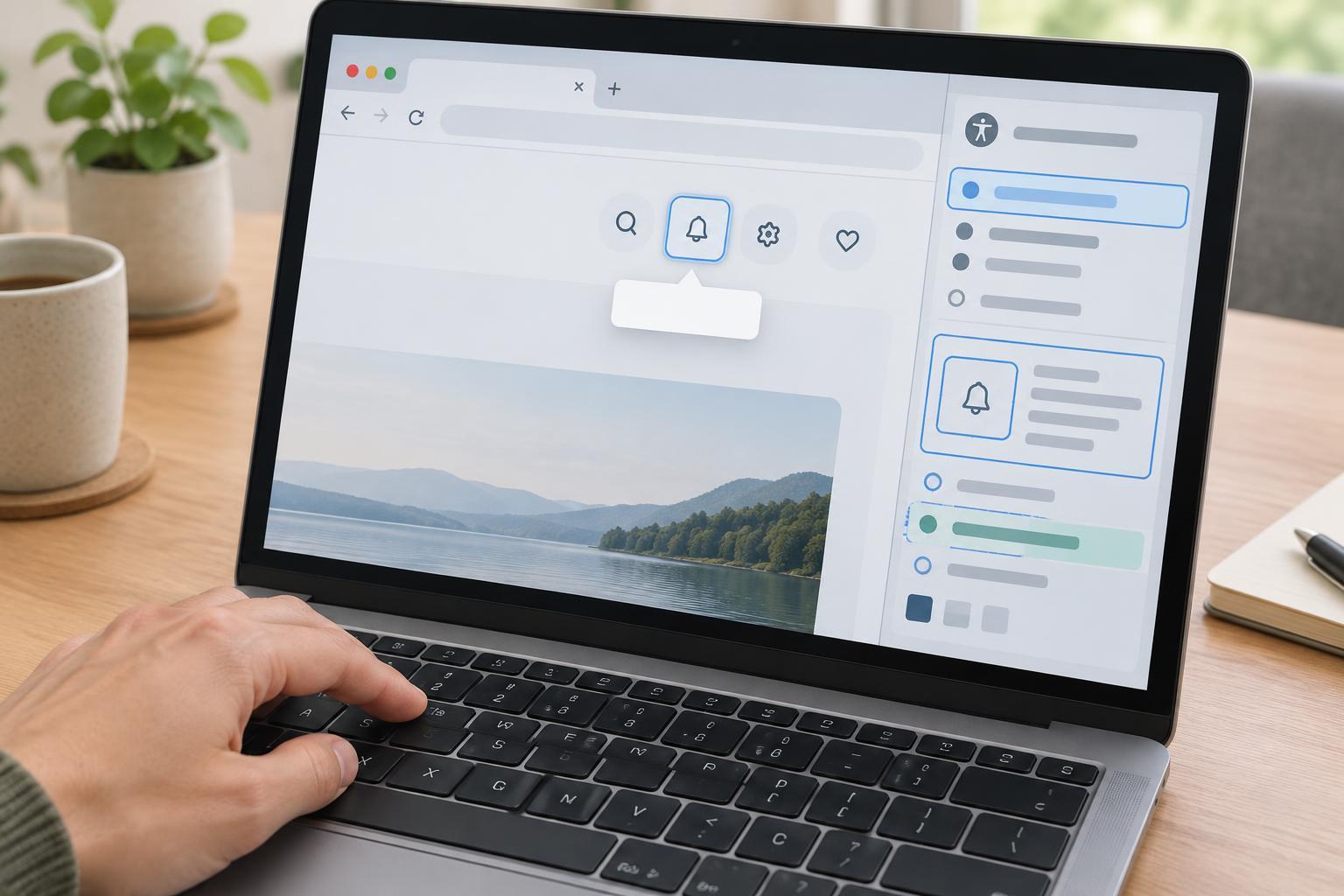
Put the pointer aside. Starting from the browser’s address bar or the beginning of the page, press Tab to move forward through interactive elements and Shift+Tab to move backward. On the sample page, check that focus reaches the navigation link, search field, Search button, and dialog button in an order that makes sense. Headings and ordinary text generally are not Tab stops; you will inspect those during the screen reader pass.
At each stop, look for a clearly visible focus indicator and check that it is not hidden behind a sticky header or clipped by a container. Use Enter to activate a link or button and type into the search field. When appropriate, test Space on buttons too. If a control appears usable with a pointer but cannot be reached or operated from the keyboard, note the control, the expected action, and what happened instead.
Open the dialog and check where focus moves. It should enter the dialog at a sensible point, remain in the dialog while it is open, and return to the opening button when the dialog closes. Try Escape to close it if that is the interaction the page provides. A confusing focus jump can make an otherwise functional interface difficult to use.
Listen to the page’s structure and controls
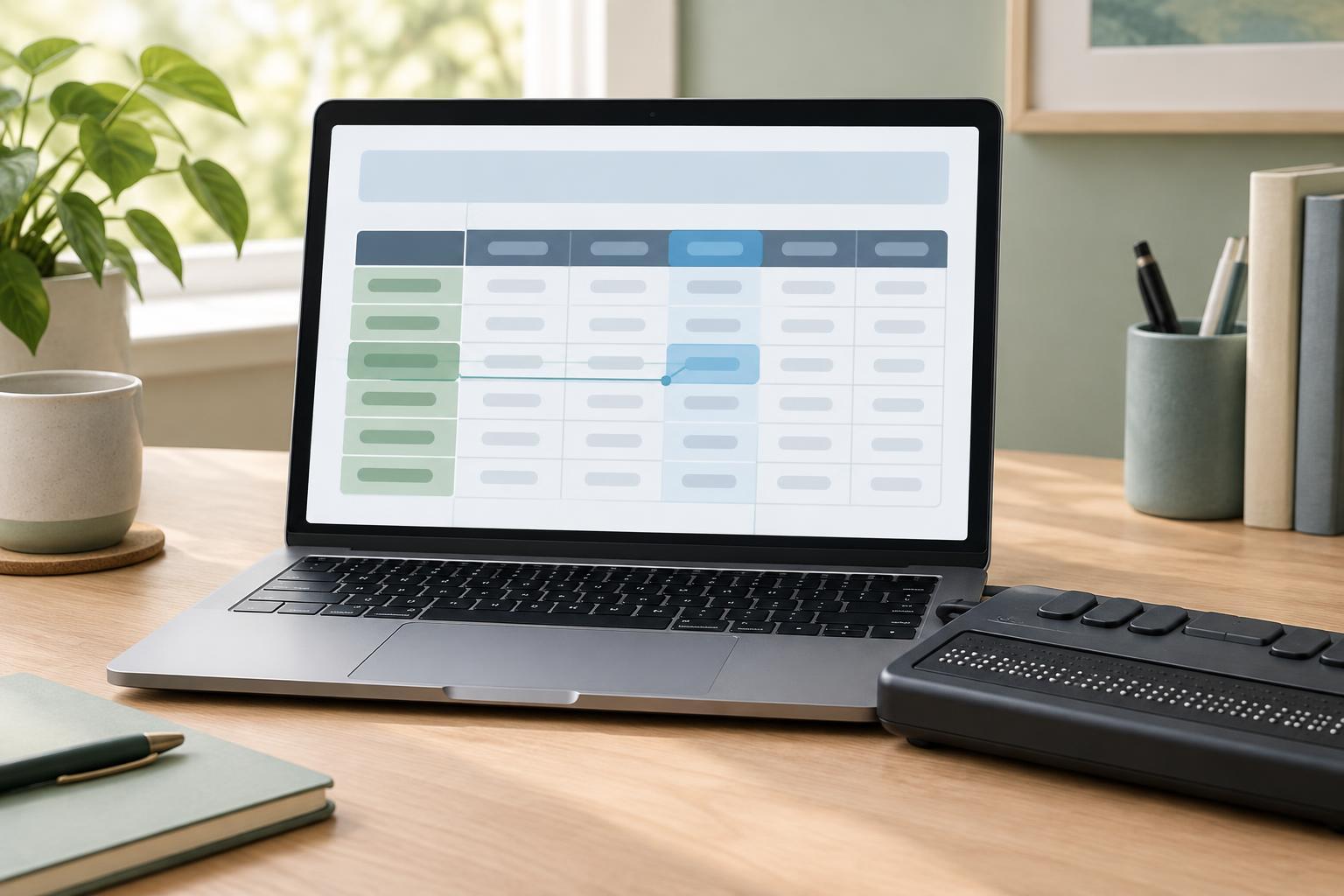
Turn on the screen reader, reload the page, and begin at the top. First explore by headings and landmarks using your screen reader’s navigation commands, then move through the page in reading order. The main heading should describe the page, and navigation and main content should be distinguishable. Do not treat a successful Tab pass as proof that this structure is present: a screen reader user may navigate by headings, landmarks, or other elements rather than tabbing through every control.
Next, focus each interactive element and listen without relying on its visual appearance. Does the search field have a meaningful spoken label? Is the Search button announced as a button with an understandable name? If the dialog button changes state or wording, does its accessible name still describe what it does? Record the words you hear and compare them with what a user needs to decide what to do next. Screen reader speech varies by software and settings, so concentrate on whether the essential information is conveyed rather than on an exact phrase.
Test errors and changing content
Submit the search form empty, then try a value that produces no results. Check where focus remains and how the error or empty state is communicated. A message that appears only as colored text may be easy to miss. The input should still have a clear label, and any error should identify the problem in text and be associated with the relevant field. Listen for the message, then check whether it can also be found by reading through the page.
Now submit a value that changes the results without a full page reload. Check whether a screen reader user can tell that something changed and locate the updated results. An announcement may be helpful, but announcing an entire results list can be overwhelming. A short status such as a result count, paired with a well-labeled results area, may be easier to use. Test the actual behavior instead of assuming that adding a live region or moving focus will automatically improve it.
Turn observations into fixes
Write findings as steps another person can repeat: environment, starting state, keys pressed, expected behavior, and observed behavior. For example, “After opening the dialog, pressing Tab moves focus to a link behind it” is more actionable than “dialog accessibility is broken.” Fix the underlying interaction or markup, then repeat both the keyboard and screen reader passes. A change to focus management can alter what is announced, and a change to labels can affect how a control is found.
This workflow is a focused check, not a complete accessibility audit. Repeat it on important page types, at different viewport sizes, and after substantial interface changes. Testing with more than one browser and screen reader combination can reveal differences, but even one carefully documented combination provides useful evidence about barriers on the page.