Two environments, two kinds of evidence
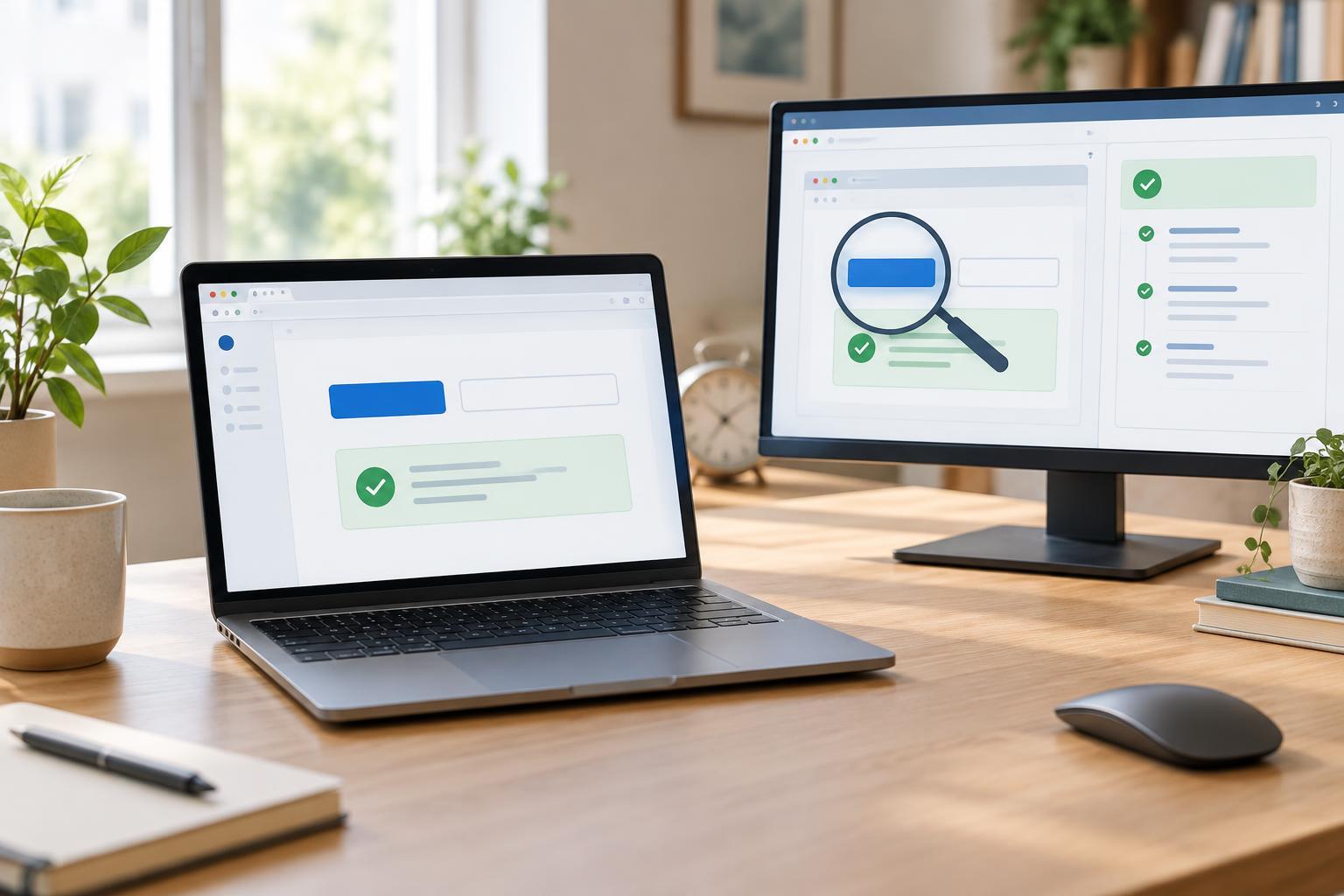
A DOM test runs interface code against a document implementation supplied by a test environment, often inside Node.js. A real-browser test runs the page in a browser engine and interacts with it through automation. Both can query elements and check their state, but they do not observe the same system. A DOM test is well suited to checking what your JavaScript changed. A browser test can also check how the page behaves when the browser lays it out and handles input.
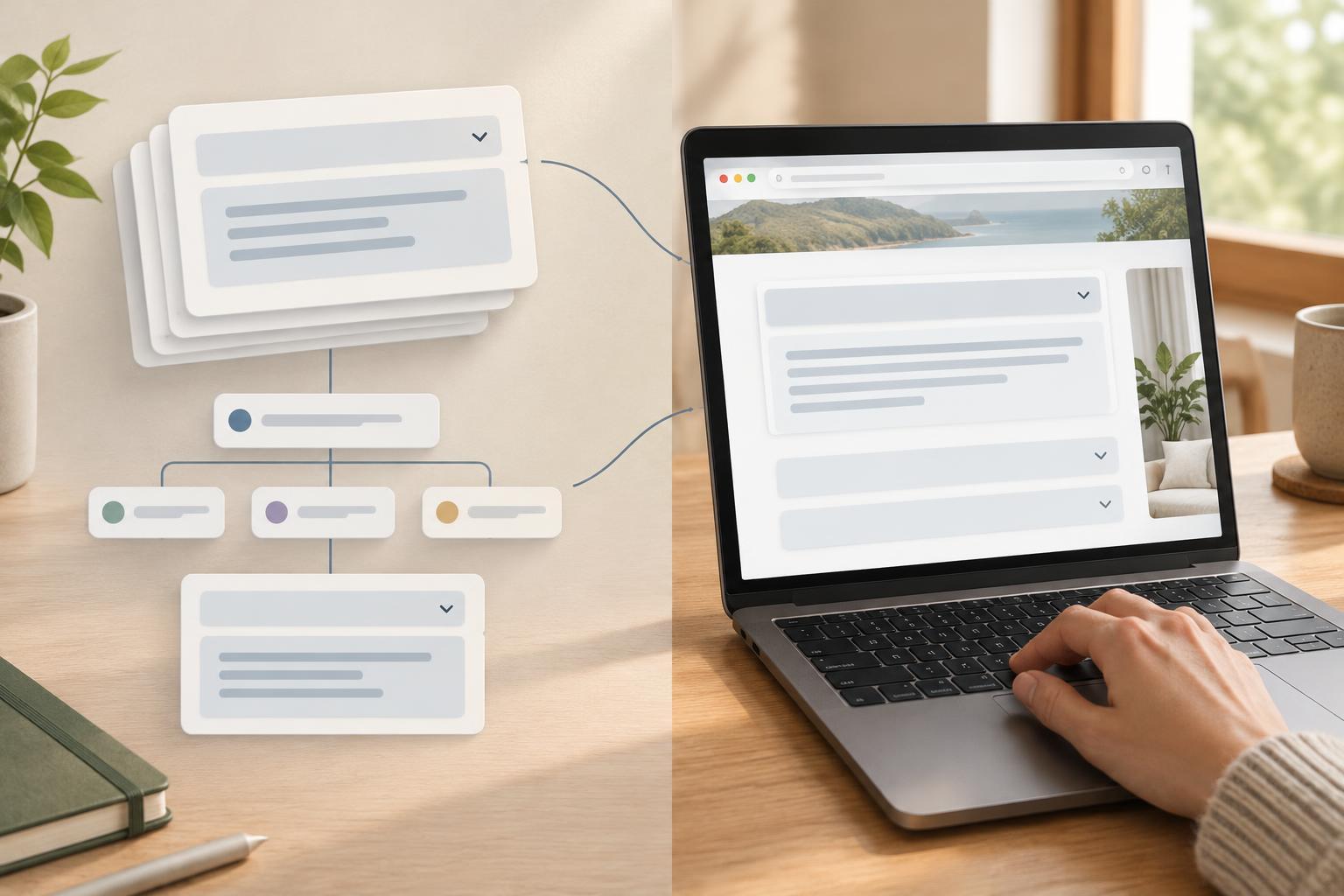
Consider a disclosure component with a button and a panel. When the button is activated, the component changes the button’s aria-expanded value and the panel’s hidden property. That small contract gives both environments something useful to test. It also exposes the distinction between them: confirming that hidden became false is not the same as confirming that the panel is visible and usable on a rendered page.
What a DOM test can verify
For a reproducible DOM test, use a Node.js test runner configured with a DOM implementation such as jsdom. Create a fresh document for each test, add a button with aria-expanded set to false and a panel with hidden set to true, then run the function that attaches the component’s event handler. Dispatch a click on the button. Assert that aria-expanded is now true and the panel’s hidden property is false. A second click should restore the initial values.
This test checks initialization, event handling, state changes, and DOM attributes without launching a browser. It is also a useful place to cover edge cases: two independent disclosures should not change each other, and repeated activation should not leave the button and panel out of sync. Use the same test setup on every run, including the DOM implementation, test runner, and component code versions, so failures are easier to reproduce.
The limit is important. A simulated click shows that a registered handler responds to that event; it does not establish that someone can reach the button with a keyboard or activate it through the browser’s normal input behavior. DOM implementations may provide some focus and style APIs, but they are not substitutes for a browser’s layout, painting, or full input handling.
What a real-browser test adds
Run the same disclosure in a page using a browser automation tool, such as Playwright with its installed Chromium browser. Set a viewport size, navigate to a locally served test page, and start from a known closed state. Focus the button using keyboard navigation, activate it with Enter or Space, and check that the panel becomes visible. Check aria-expanded as well: a visually open panel with an incorrect accessibility state is still a defect.
A browser can expose problems that the DOM test cannot reliably catch. A stylesheet might keep the panel offscreen after hidden is removed. Another element might cover the button, preventing a pointer click. Responsive rules might make the control unusable at a narrow viewport. Browser tests can inspect visibility, position, and interaction under specified viewport and input conditions. Record the browser engine and viewport used; a pass in one configuration does not imply a pass in every browser or screen size.
A browser test is not a complete accessibility verdict. Automation can confirm particular keyboard paths and exposed attributes, but it cannot determine whether labels are clear or the interaction makes sense to people. Those questions still call for deliberate review.
Choose assertions that match the environment
Keep DOM tests close to the component’s contract. Ask whether activating this button updates the right panel and leaves unrelated panels alone. Avoid asserting layout measurements in a DOM environment: values from geometry or computed-style APIs may not represent what a rendered page would show. Likewise, dispatching a key event is not a reliable way to prove that the browser will perform its default keyboard action.
In browser tests, assert the outcome a user could encounter. For the disclosure, that means testing keyboard access, whether the panel can be seen after activation, and whether it closes again. Check DOM state there too, but avoid duplicating every small state permutation from the faster DOM suite. Browser tests usually require more setup and time, so give each one a distinct purpose.
Use both without treating either as a guarantee
A practical test set might contain several DOM tests for disclosure state and independence, plus one browser test for the main keyboard and visibility path at a defined viewport. Add another browser case when a particular layout or interaction has caused trouble. If the component fetches content, control that dependency explicitly in each environment; otherwise a network response can obscure what the test is meant to verify.
When a test fails, the environment helps narrow the question. A failing DOM assertion points toward component logic or test setup. Passing DOM tests followed by a browser failure suggest looking at CSS, browser input behavior, page integration, or timing. Neither result proves the entire interface correct. Together, the two environments provide complementary evidence: one about predictable DOM changes, the other about those changes working in a rendered, interactive page.