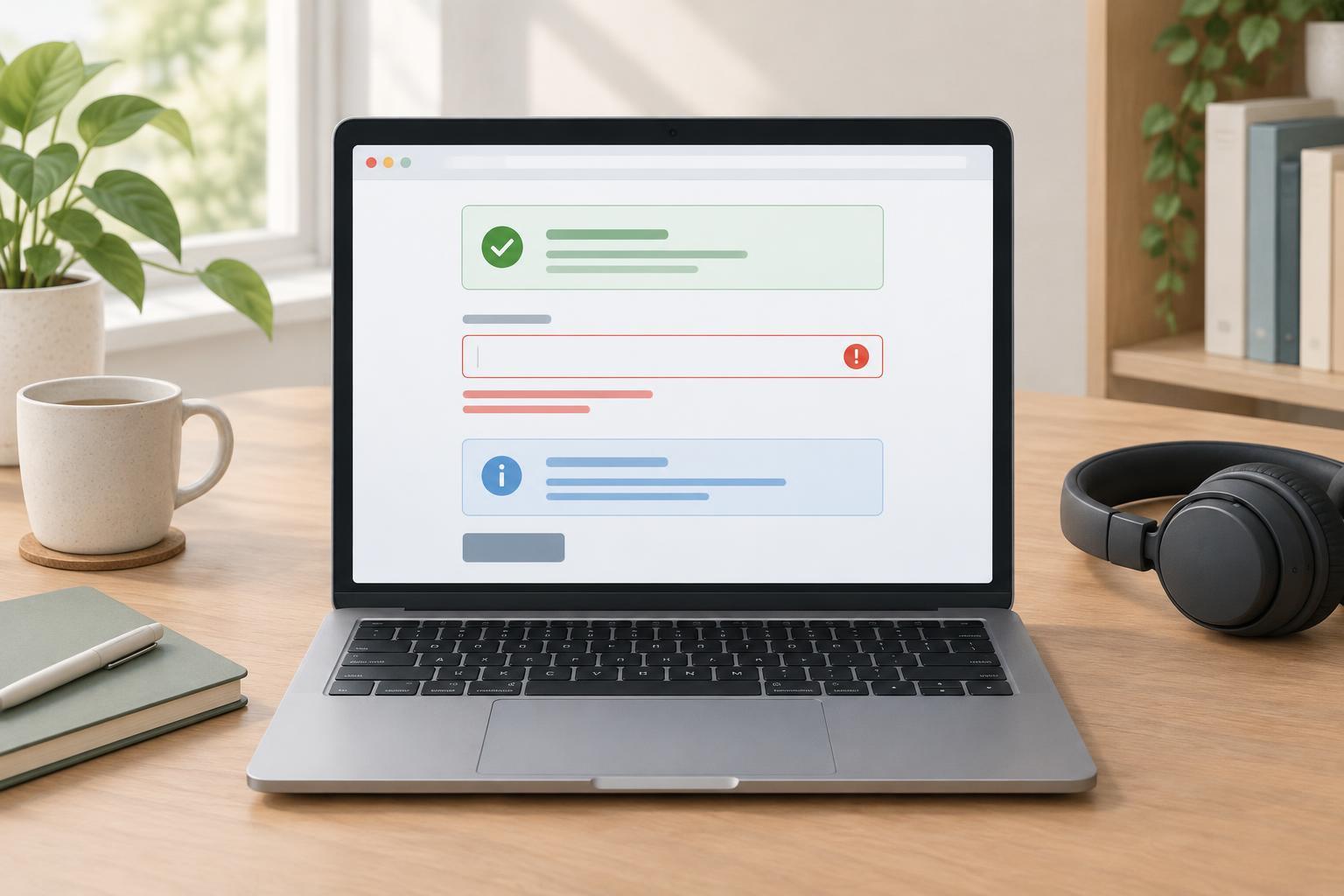
Make the message understandable without its styling
A status message tells someone what happened after an action: a form was saved, an upload is still running, or a submission needs attention. Color can help people scan these messages, but it cannot be the only way to tell success from failure. Someone may not distinguish the chosen colors, may use a display with altered colors, or may hear the page through a screen reader instead of seeing it.
Write the status in words that stand on their own. “Changes saved” is clearer than a green box containing only “Done.” “Upload failed. Try again” is more useful than a red dot. If the next step matters, include it: “Email address is missing. Enter an address to continue.” Test the wording by imagining the background color, border, and icon removed. The remaining text should still identify both the state and any action needed.
Use visual cues as reinforcement
Color is still useful when paired with other cues. A success message might use a green accent and the label “Saved.” An error might use a red accent and the label “Could not save.” An icon can provide another quick cue, but keep the text: a check mark or warning triangle may be unfamiliar, and its meaning can change with context.
Give the message enough visual definition to be noticed without depending on hue alone. A heading, border, spacing, and consistent placement can separate it from surrounding content. Keep text readable against its background, including when colors are customized or a high-contrast mode changes the design. Avoid making an error identifiable only by changing an input border; put an explanation near the affected field as well.
Put feedback where people can use it
A message is easier to act on when its location matches its scope. Place a field-specific error next to the field, with wording that names the problem. Place a page-level result, such as “Your settings were saved,” near the form or action that produced it. If several fields need correction, a short summary before the form can help people find the errors, while the individual fields still provide precise guidance.
Do not replace an error with a success message so quickly that someone cannot read it. Likewise, avoid clearing a message merely because a user moves focus. For a longer process, distinguish progress from completion: “Uploading…” should not look or sound like “Upload complete.” These choices make the interface understandable for people who read slowly, zoom in, or move through the page with a keyboard.
Announce changes without interrupting unnecessarily
Visual placement does not guarantee that a screen-reader user will notice a message added elsewhere on the page. For routine results that appear after an action, a live region can announce the change. The following example assumes an ordinary browser page with JavaScript enabled and a button that saves settings. Include an initially empty element in the page: <p id="save-status" role="status" aria-atomic="true"></p>. When the save operation finishes, update that existing element: document.getElementById('save-status').textContent = 'Settings saved.';
The status role is intended for non-urgent updates and generally allows the announcement to wait for a suitable pause. Reserve more interruptive alert behavior for information that genuinely needs immediate attention; making every update urgent can be distracting. Keep the visible message and the announced message consistent rather than giving screen-reader users a different result. Do not rely on the live announcement alone, because someone may miss it or return to the page later.
Check the message in realistic states
Review each state the component can show: idle, in progress, success, and failure. For every state, ask what the text says, whether its visual treatment is distinct without color, and whether a person can find it after the triggering action. For errors, check that the message explains a useful next step rather than just declaring something wrong.
Try the interface with CSS colors removed or changed, keyboard navigation, and a screen reader if one is available in your testing environment. Confirm that dynamic messages appear as readable page content, that routine updates are announced appropriately, and that repeated actions do not leave contradictory messages on screen. A status design works best when its words, placement, and behavior communicate the same outcome.