Start with a result you can reproduce
A useful debugging session begins with a specific mismatch: what did the code produce, and what did you expect? Consider a function that takes a price and a discount percentage. For a price of 50 and a discount of 10 percent, the expected result is 45. If the function returns a negative number instead, there is a concrete path to investigate.
You can reproduce the example in a desktop version of Chrome using DevTools. Open DevTools, go to Sources, create a new Snippet, and enter: function discountedPrice(price, percent) { const discount = price * percent; return price - discount; } console.log(discountedPrice(50, 10)); console.log(discountedPrice(50, 20)); Run the snippet and check the Console. It prints -450 and -950, although the intended results are 45 and 40. Keeping the inputs small makes it easier to recognize where the calculation goes wrong.
Pause execution with a breakpoint
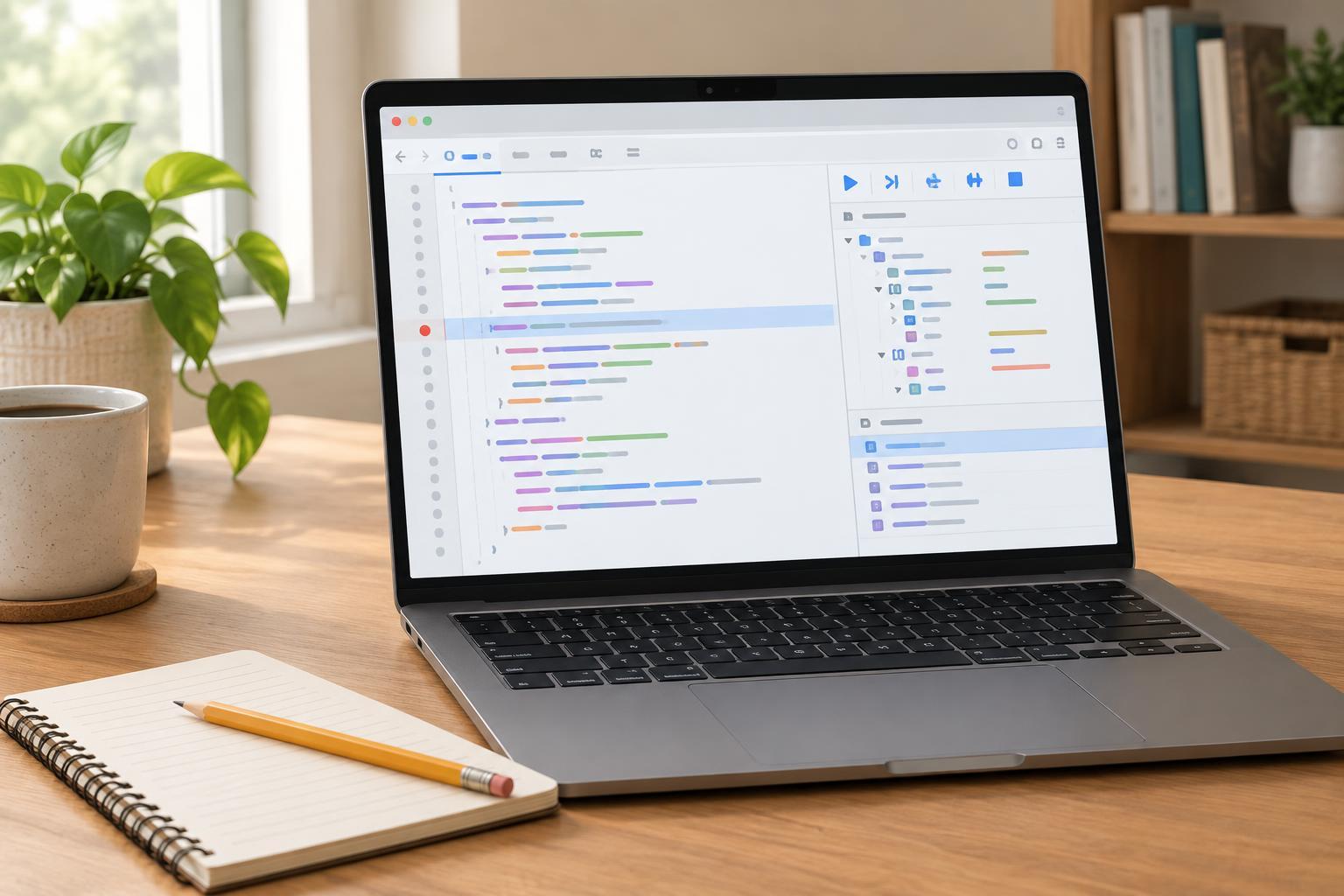
A breakpoint stops JavaScript before a selected line runs. In the Snippet, click the line number beside const discount = price * percent; and run the snippet again. DevTools should pause inside discountedPrice on the first call. The highlighted line has not executed yet, so discount does not have its value from that line. This distinction matters when you compare the state before and after an assignment.
Look at the Scope panel while execution is paused. The function parameters should show price as 50 and percent as 10. Those values establish that the first call supplied the inputs you intended. If they were already wrong, you would investigate the caller instead of the calculation. Breakpoints help separate a problem in the data entering a function from a problem in what the function does with that data.
You can remove a breakpoint by clicking its line number again. For a function called many times, a conditional breakpoint can pause only when a condition is true. In Chrome DevTools, right-click a line number and choose a conditional breakpoint, then enter an expression such as percent === 20. Use conditions that are safe to evaluate; an expression that changes program state can make the behavior you are investigating harder to understand.
Step through the calculation
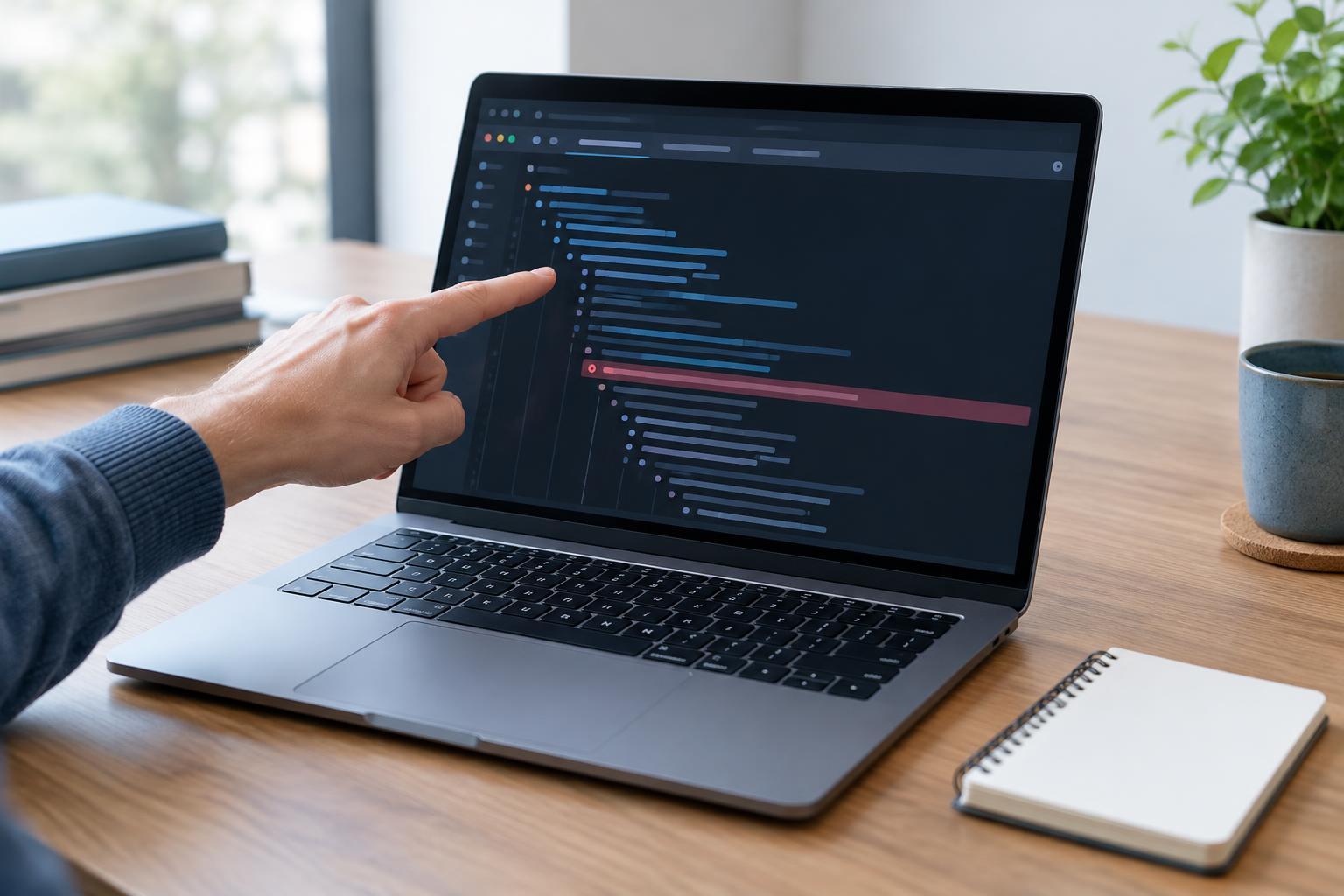
With execution paused on the assignment, use Step over to execute that line and stop at the next one in the same function. Now inspect discount in Scope: its value is 500. The function is treating 10 as a multiplier rather than as a percentage. Step over the return line to finish the function, or use Resume to continue until the next breakpoint. Stepping lets you observe exactly when a value becomes incorrect instead of guessing from the final output.
The other stepping controls answer different questions. Step into follows a function call so you can inspect what happens inside it. Step out runs the rest of the current function and pauses back in its caller. If you pause on a call to discountedPrice and need to examine its calculation, step into it. If you have already established that the function behaves as expected, step out and continue examining the calling code. Step over is usually the simplest choice when a called function is not relevant to the bug.
Inspect values without changing the program
While paused, the Scope panel shows variables available at the current location. You can often hover over a variable in the source to see its value. The Watch panel is useful for expressions you want to check at multiple pauses: add price * percent / 100, for example, and compare its result with discount. At the first call, the watched expression evaluates to 5 while discount becomes 500. A watch expression is a diagnostic aid, not a change to the function.
The Call Stack panel shows how execution reached the paused line. In a larger application, selecting an earlier stack frame can reveal the arguments and local values at the point where the function was called. Inspecting the stack is particularly helpful when the same function behaves differently for different callers. Remember that the displayed values depend on where execution is paused: a variable declared on a line you have not executed may not yet be initialized.
Fix the cause and verify the behavior
The function expects percent to be a whole-number percentage, such as 10 for 10 percent. Change the assignment to const discount = price * percent / 100; then rerun the snippet. The two calls should now print 45 and 40. If a breakpoint is still enabled, execution will pause there again; resume it to see the Console output. Checking both inputs helps confirm that the change addresses the calculation rather than only one observed result.
The same workflow applies to scripts in a web page: reproduce the problem, pause near the relevant code, inspect inputs, step until a value diverges from expectations, and rerun after a focused fix. If your application uses a build tool, DevTools may show both generated code and original source files. Source maps, when configured, make the original files easier to debug. Whichever view you use, follow the values through the actual execution path rather than relying on how the code appears to behave at a glance.