Start with the outcome
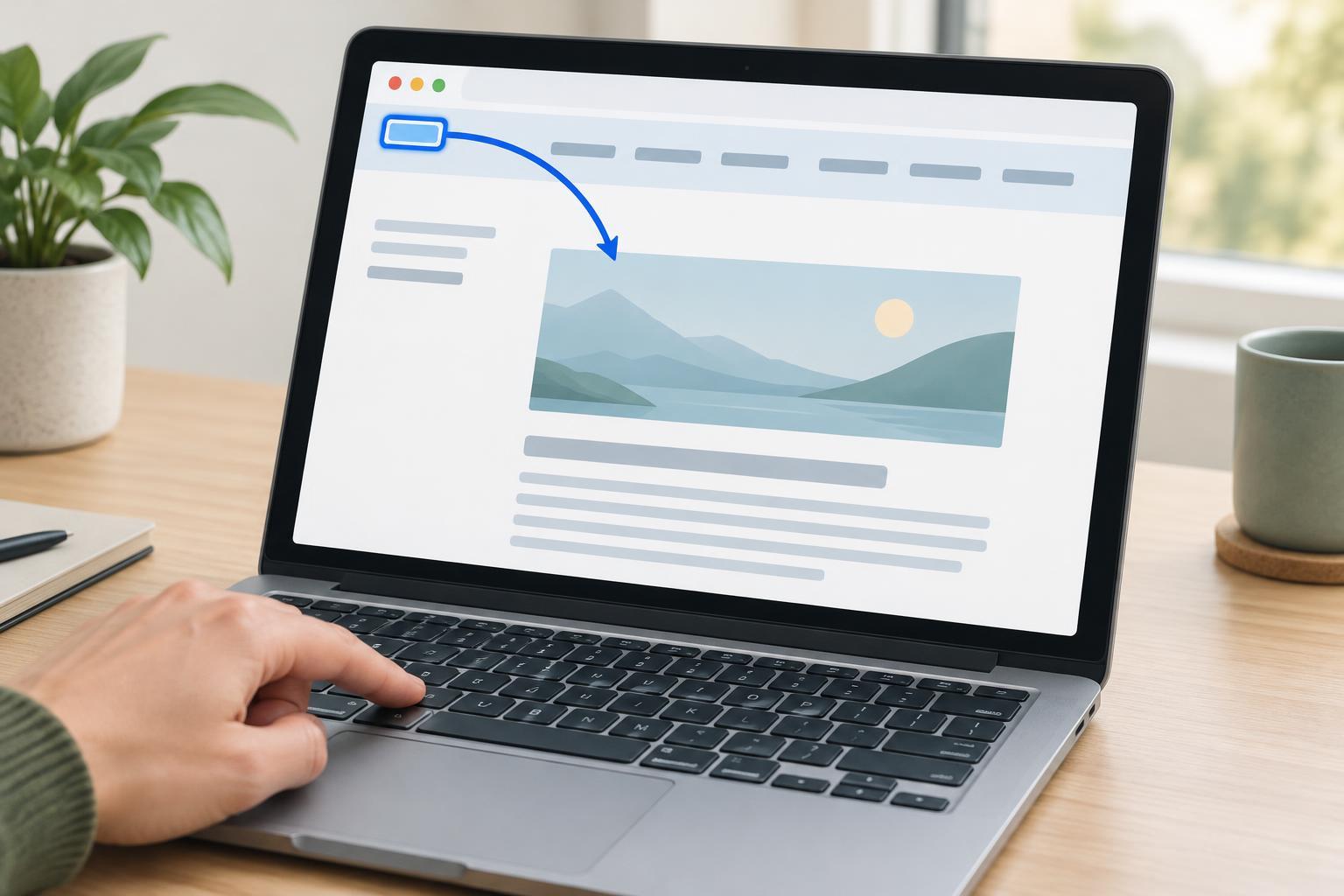
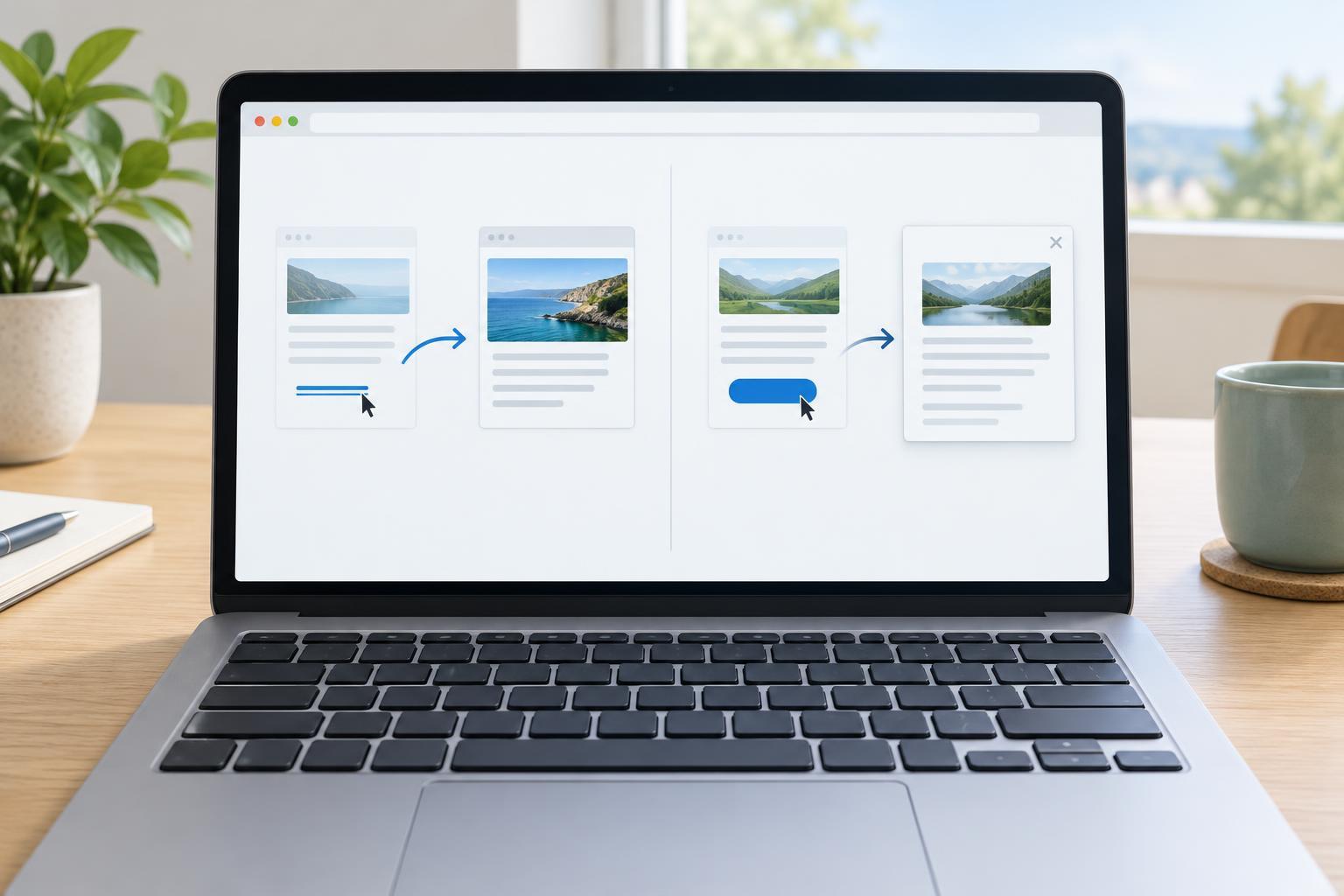
Ask what should happen when the control is activated. If the expected result is navigation to another page, a section of the current page, or a downloadable resource, use a link with a meaningful destination. If the expected result is an action on the current interface, such as opening a menu, saving a preference, or dismissing a dialog, use a button. Appearance does not decide the element: a link can look like a prominent call to action, and a button can look understated.
This distinction gives people useful expectations before they activate a control. A link exposes a destination and supports familiar browser actions, such as opening that destination in a new tab or copying its address. A button communicates an action rather than a place to go. Choosing the native element also gives assistive technology an appropriate role without asking JavaScript to recreate one.
Use links for real destinations
A product card that opens a product page needs a link. So does a “Skip to content” control that moves to a section with a matching identifier. Give the link an actual destination rather than using a placeholder address and intercepting every click. A placeholder may appear to work with a mouse while behaving unexpectedly when someone opens it in a new tab or copies its address.
Client-side routing does not change the underlying purpose. If selecting “Account settings” changes the route, use a link or a routing component that renders one and preserves normal link behavior. JavaScript may handle ordinary activation without a full page load, but the destination should remain meaningful. Where possible, the route should also work when loaded directly. Conversely, if “Show account settings” only expands a panel on the same page, it is an action and calls for a button.
Write link text that identifies the destination in context. “View shipping options” is more useful than “Click here.” Avoid forcing a new tab merely because a link leaves the site; unexpected tab changes can be disorienting. If opening a new tab is necessary for a particular flow, make that behavior clear in the link’s accessible name or nearby text.
Use buttons for actions and form commands
A button is the right choice for toggling a disclosure, applying a filter, copying a code, or closing a notice. In a form, a submit button sends the form through its submission process. A button that performs another task inside the form, such as revealing password text, should have a non-submit type; otherwise, its default form behavior may submit unexpectedly.
Choose a label that describes the action, such as “Save changes” or “Close menu.” For a toggle, keep the label and state understandable together. A menu button, for example, can retain the name “Menu” while its expanded state changes as the menu opens and closes. When an action cannot currently be performed, a disabled button may be appropriate, but consider whether a brief explanation would help people understand what is missing. A disabled button is usually removed from keyboard focus, so it should not be the only place that explanation appears.
Do not turn an ordinary link into a button simply by adding a button role or a click handler. That approach can lose expected link capabilities and may require extra keyboard behavior. Likewise, a button that changes the page location is usually a less useful substitute for a link. Start with the element that matches the outcome, then style it.
Check keyboard and browser behavior
For a reproducible check, use a current desktop browser with a keyboard and load the page without relying on a mouse. Press Tab to move through controls and observe the visible focus indicator. Press Enter on a link and confirm that it navigates to the intended destination. Press Enter or Space on a button and confirm that it performs its action. Native controls provide these differences; a generic clickable element does not automatically do so.
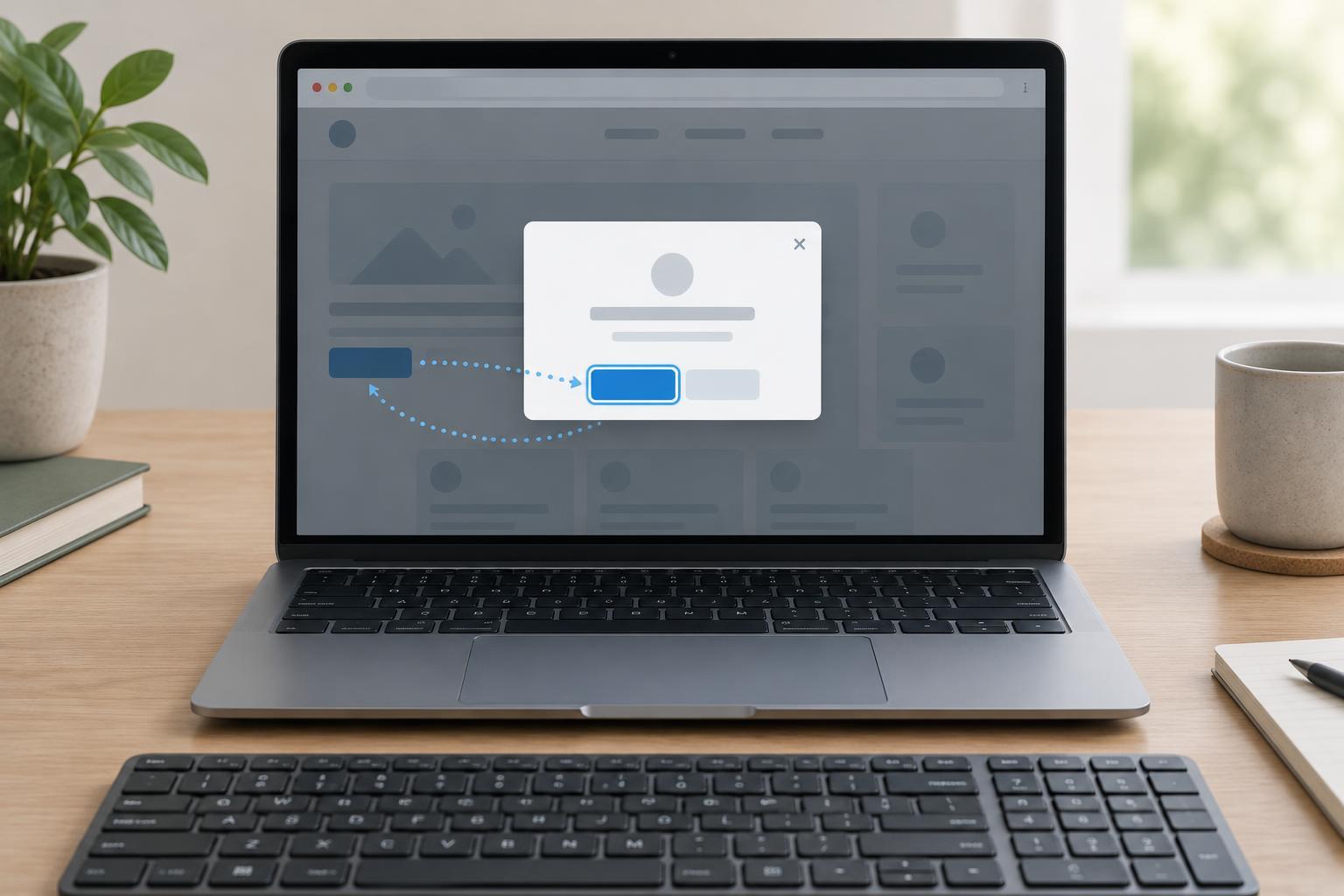
Also check what happens around the action. After a button opens a dialog, keyboard focus should move into a sensible place in the dialog; when it closes, focus should generally return to the control that opened it. After a navigation link loads a new view, the new page should have a clear heading and document title. These checks reveal problems that visual styling alone cannot show. If JavaScript fails to load, links with real destinations can often still navigate, while actions that depend on JavaScript should fail without misleading the user.
A quick decision test
Imagine three controls labeled “Read guide,” “Show table of contents,” and “Send feedback.” “Read guide” points to another page, so it is a link. “Show table of contents” reveals content in the current view, so it is a button. “Send feedback” submits a form, so it is a submit button. If a design asks for all three to look alike, keep their appropriate elements and change only their presentation.
Before shipping, ask two questions: Can this control name a destination that someone could open or copy? If so, it is probably a link. Does it instead perform an operation here? If so, it is probably a button. Then verify the choice with a keyboard, including its focus, activation, and resulting state. The goal is not to enforce a visual convention; it is to make each control behave as people expect.