Start with one set of links
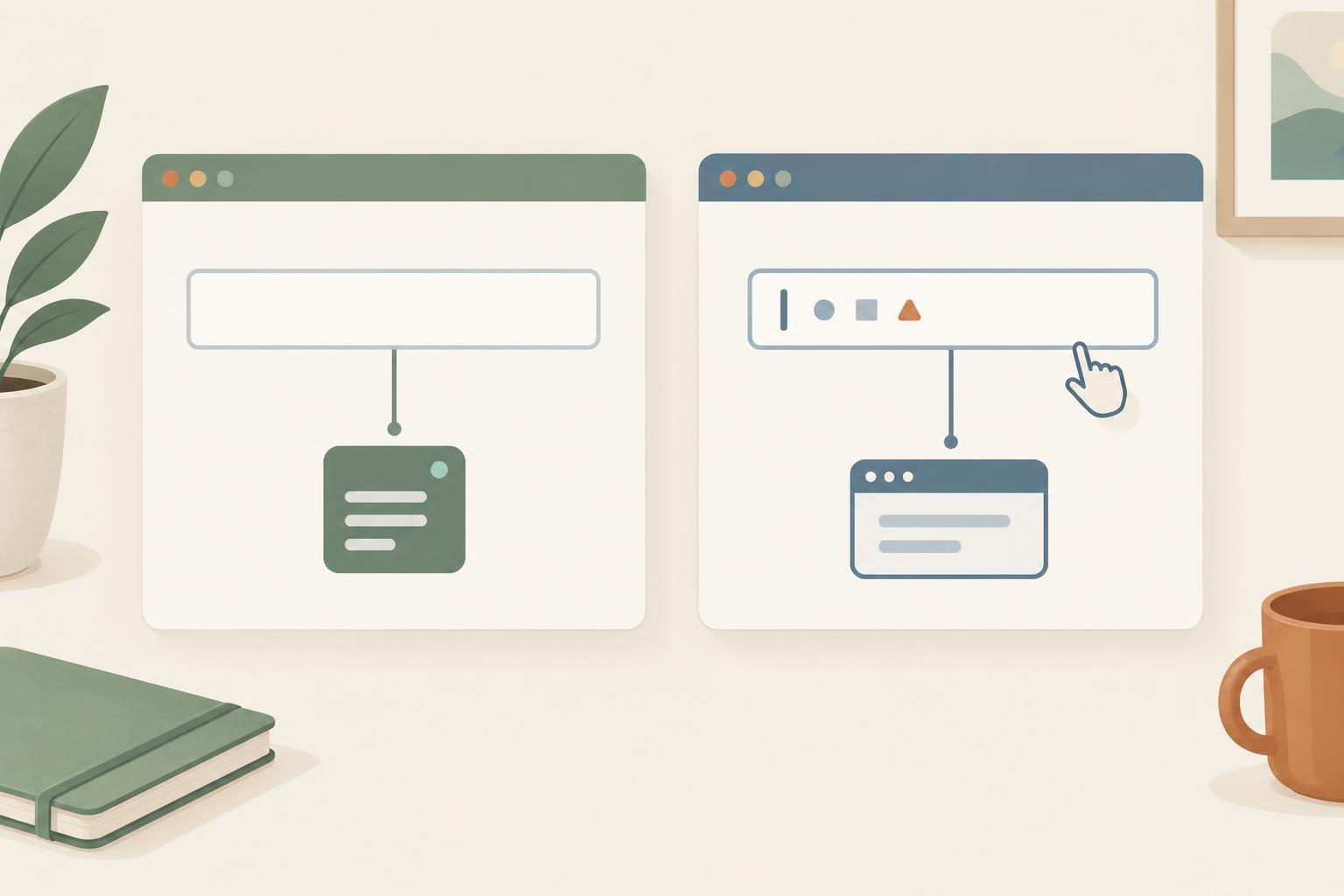
A responsive menu is easier to maintain when its links exist only once. Place them in a navigation landmark with a useful label, such as “Primary navigation,” and use ordinary links for destinations. Keep the same links in the same order at every screen width. CSS can change their layout without creating separate desktop and mobile menus that might drift out of sync.
For this example, use a modern browser, plain CSS, and a small amount of JavaScript; no framework or library is needed. Choose 48rem as an example breakpoint, then adjust it to fit your content rather than a particular device. Above that width, show the links in a row. Below it, stack them and add a menu button before the links. The button should say what it controls, such as “Menu,” rather than relying on an icon alone.
Make the button control the narrow layout
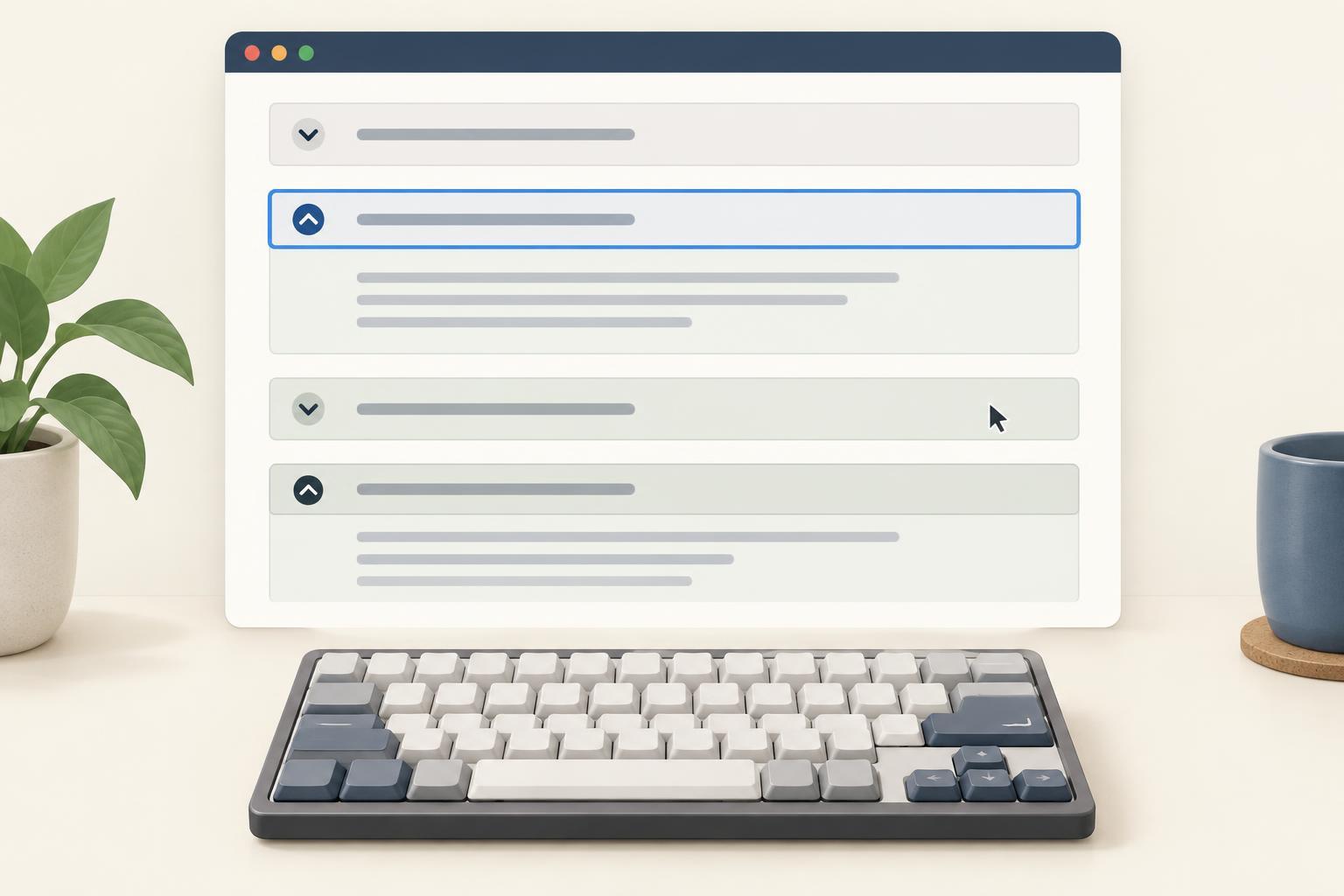
Use a button for the toggle because buttons already respond to mouse clicks, touch activation, Enter, and Space. Give it an initial aria-expanded value of false and connect it to the link container with aria-controls. The link container needs a matching unique ID. The button’s visible label can remain “Menu” in both states; aria-expanded communicates whether the links are open.
At widths below 48rem, have CSS hide the link container by default and display it when the navigation has a data-open value of true. At wider widths, display the links and hide the toggle button. These rules make the desktop links available regardless of the mobile menu state. When the mobile container has display: none, its links are also removed from keyboard navigation; simply moving closed links off-screen would not provide that behavior.
The click handler has a short job: read whether the menu is open, switch the navigation’s data-open value, and set aria-expanded to the same new state. Keep those updates together so the visual display and button state do not disagree. Avoid adding a hover-only rule to reveal the links. Hover may be convenient for a pointer user, but it cannot serve as the primary way to open a menu on touch or with a keyboard.
Handle focus and screen-size changes
Opening the menu does not need to move focus automatically. Leaving focus on the button lets a keyboard user press Tab to reach the first link in the normal order. Give both the button and links a visible focus indicator, and make sure the open panel does not cover the button. The button should remain large enough to operate comfortably by touch without relying on a precise tap.
Add an Escape key handler for the narrow layout. When the menu is open, Escape should close it, update aria-expanded, and return focus to the button if focus was inside the links. This matters because closing a menu while a link has focus would otherwise hide the focused element. If focus is elsewhere, avoid moving it unexpectedly. You can also close the menu when a link is chosen; for same-page links, check that the resulting focus behavior remains sensible.
Consider what happens when someone resizes the window. If they open the narrow menu, switch to the wide layout, and later switch back, an old open state could reappear. A change listener on matchMedia('(min-width: 48rem)') can reset data-open to false and aria-expanded to false when the wide layout begins. The links stay visible on desktop because the wide CSS rule controls their display.
Test behavior, not just appearance
First, use a mouse or touch screen at a narrow width: open the menu, follow a link, and confirm the button and panel do not overlap other controls. Then put the pointer aside. Starting before the navigation, press Tab until the menu button receives focus, activate it with Enter and Space in separate tests, and Tab through every visible link. Press Escape while a link is focused and confirm focus returns to the button. With the menu closed, Tab should skip its hidden links.
Repeat at a wide width. The links should be reachable without opening a menu, and the hidden toggle should not appear in the tab order. Finally, resize in both directions while the narrow menu is open and closed. If the display, aria-expanded value, and keyboard behavior remain consistent, the component is doing the essential work of responsive navigation rather than merely changing its appearance.