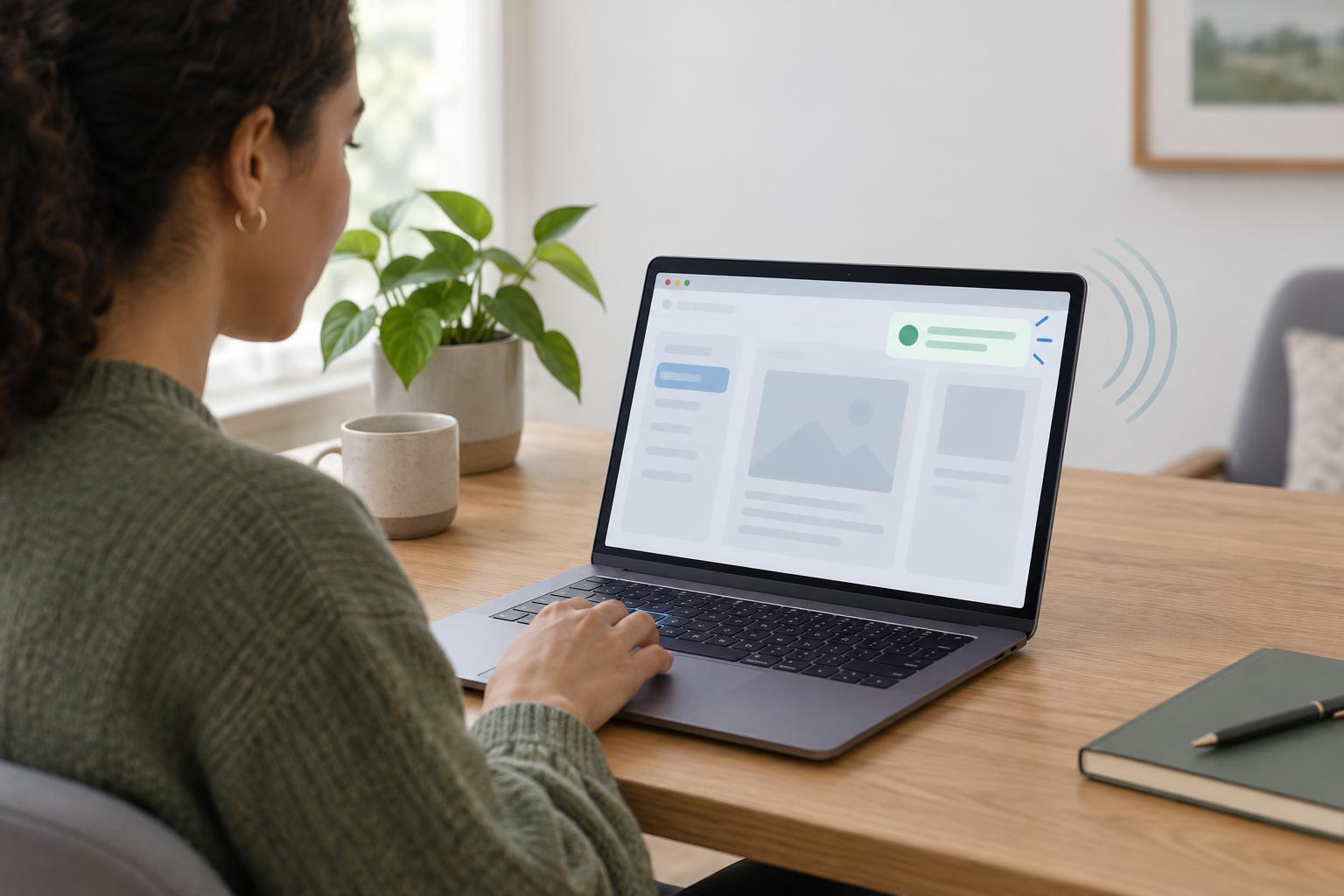
What a live region is for
A dynamic interface may update a search result count, confirm that an item was saved, or report that a background task failed. A sighted person may notice the new text immediately, while someone using a screen reader may have no reason to navigate to it. An ARIA live region lets assistive technology know that changes to a particular part of the page may need to be announced.
Use a live region for information that matters now but does not require moving focus. It should not replace visible feedback: the message should also be available to people who are not using a screen reader. Nor should it replace sound focus management. If an action opens a dialog, for example, moving focus into that dialog is more useful than merely announcing that it opened. If a user needs to find and fix a form field, connect the visible error to that field as well as considering an announcement.
Choose the least disruptive announcement
For routine updates, use a polite live region. A polite announcement generally waits for the screen reader's current speech to finish. The status role provides this behavior and suits messages such as “Draft saved” or “8 results found.” Reserve assertive announcements for interruptions that genuinely need prompt attention. The alert role is one way to request that behavior, but repeated alerts can make an interface difficult to use.
Choose the content as carefully as the priority. “Saved” is useful after a save action; announcing every keystroke in an autosave field is not. A result count is often more helpful than reading every new result aloud. Keep messages short, specific, and connected to the action that caused them. Do not announce the same change through both a live region and an unrelated focus move unless both serve distinct purposes.
Build a small browser example
This example assumes a current desktop browser with JavaScript enabled, a page containing a Save button, and an initially empty element reserved for feedback. Give that feedback element the status role and place it in the document when the page first loads. It may sit near the button or in a consistent message area. Keep it available to assistive technology; hiding it with display: none or the hidden attribute prevents it from working as an active live region.
When the user activates Save, leave focus on the button and update the feedback element's textContent to “Saving…”. After the save operation succeeds, change textContent to “Changes saved.” If it fails, show a useful visible failure message instead. In JavaScript, the essential update is straightforward: const status = document.getElementById('save-status'); status.textContent = 'Changes saved.' Using textContent treats the message as text rather than markup.
Create the empty region before the operation starts rather than inserting a fully populated region only when a message is ready. Assistive technology is more likely to detect a change to a region it already knows about, although exact behavior varies by browser and screen reader. If repeated saves can finish out of order, make sure an older completion cannot overwrite the message for a newer action. Avoid rapidly cycling through “Saving…” and “Saved” when the operation completes almost instantly; the resulting announcements may be confusing or skipped.
Handle longer updates and repeated messages
A single status message is usually enough for a confirmation. For a stream of updates, such as a chat transcript, consider a region designed to receive additions and announce only what is new. Properties such as aria-relevant and aria-atomic can influence whether additions or an entire region are announced, but support and results can differ. Start with a small, understandable region and adjust only when testing shows a specific problem.
Updating a live region does not guarantee that identical text will be spoken twice. If a person saves two times and both operations end with “Changes saved,” some combinations may treat the second assignment as no change. Rather than adding meaningless text solely to force speech, decide whether the second action needs a distinct confirmation. A message tied to the item, such as “Profile changes saved,” may be clearer. For frequent changes such as a slider value, the control's own accessible value is usually more appropriate than a separate live announcement.
Test the experience, not just the attributes
First, check the page visually and with a keyboard. Can you trigger the update without a mouse? Is the feedback visible and understandable? Does focus remain somewhere useful? Then test with a screen reader and browser combination available to your team. Activate the control while the screen reader is speaking, repeat the action, and try both success and failure paths. Listen for missing, duplicated, delayed, or overly long announcements.
Live-region behavior can vary across assistive technologies, so one test cannot prove that every user will hear the same thing. The goal is a resilient interaction: meaningful visible text, sensible focus behavior, and a live announcement that adds information without competing for attention. When an announcement is unreliable, simplify the region and the timing before adding more ARIA.