Why an icon needs a name
A magnifying glass, an X, and three dots can be recognizable in context, but each can also mean different things. An accessible name gives a control a short description of its action so assistive technology can announce it. A tooltip is different: it is a visible hint that usually appears on hover or focus. It may reinforce a name, but it should not be the only way to discover what a control does.
The examples here assume a standard HTML button in a modern desktop browser. Start with a button rather than a clickable span or image. A button already supports keyboard activation and is identified as a button to assistive technology. If you can display text such as “Search” beside the icon, that is often the clearest solution. Icon-only controls are useful when space is limited, but the saved space makes a clear name more important.
Choose a name that describes the action
For a button that contains only a decorative search icon, aria-label="Search" supplies a name. The icon should not contribute a second, confusing description; an SVG used only as decoration can have aria-hidden="true". The resulting control should be understood as a button named “Search,” not as an unnamed button containing an image. Use a label that fits the control’s context: “Search this site” may be clearer when several search controls appear on one page.
A visually hidden text label is another option. It remains in the button’s content and available to assistive technology while CSS keeps it off screen visually. Use a tested visually-hidden CSS technique, not display: none or visibility: hidden, which generally remove the text from the accessibility tree. If visible text elsewhere already names the control, aria-labelledby can point to that text instead. Choose one clear naming approach rather than layering several labels and hoping they combine as intended.
Name the action, not merely the shape of the icon. “Close dialog” is more useful than “X”; “Download report” is more useful than “Down arrow.” Keep names concise, but distinguish nearby controls. A row of identical “More” buttons may need names such as “More options for invoice” so users can tell which item each button affects.
Treat tooltips as extra help
A tooltip can make an icon easier to interpret for sighted users, especially when the icon is unfamiliar. It does not replace the button’s accessible name. A hover-only tooltip is unavailable to people who do not use a pointer, and a label supplied only through a title attribute can be difficult to discover or experience consistently across devices and assistive technologies.
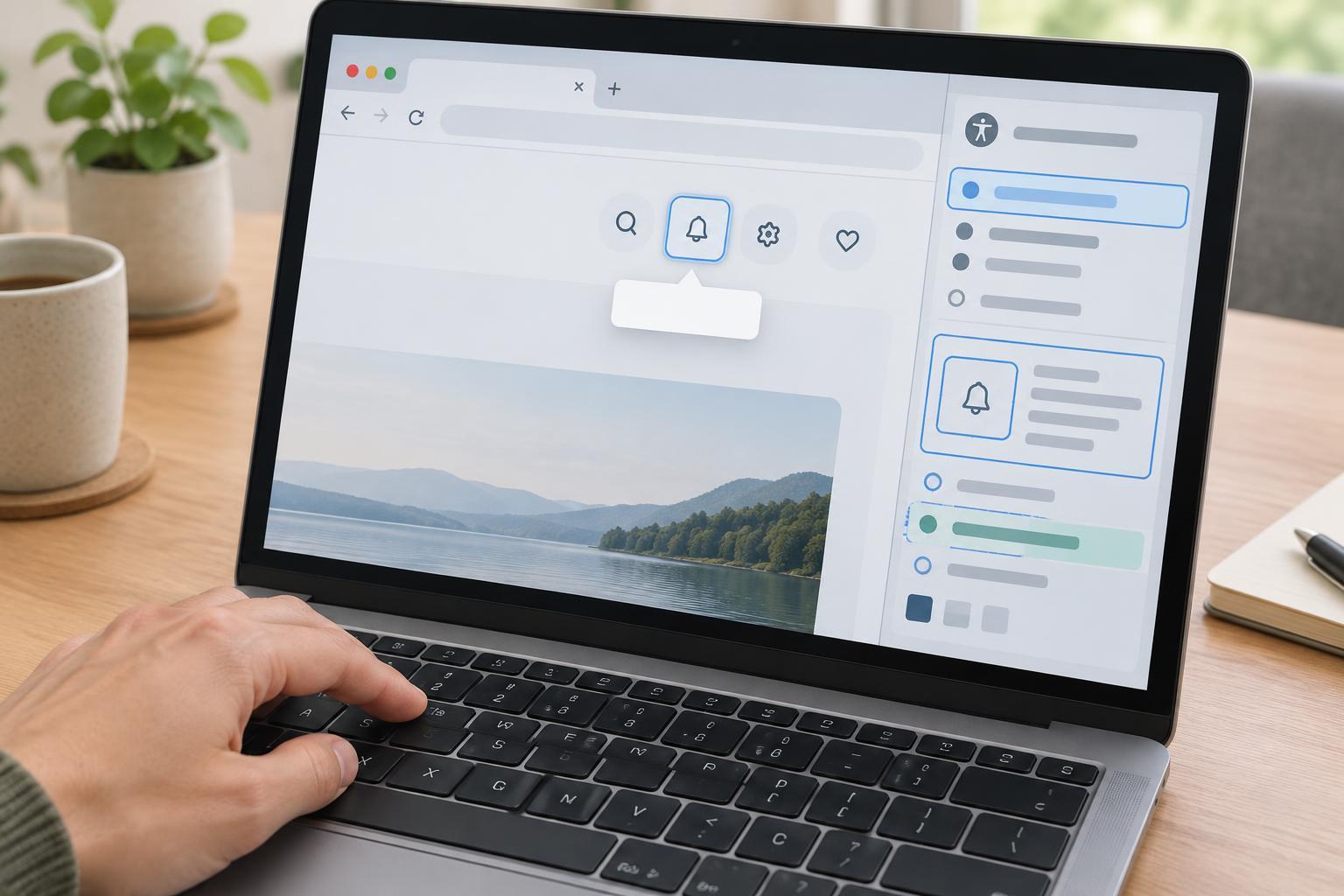
If you add a custom tooltip, make it appear when the button receives keyboard focus as well as on pointer hover. Keep it readable long enough to use, and do not let it cover the focused control. A tooltip can repeat the short action name; longer instructions are better placed in persistent nearby text or, when appropriate, an accessible description. If a user must interact with content inside the popup, it is probably more than a simple tooltip and needs a different interaction design.
Watch for state changes and misleading labels
Some icon-only buttons change what they do. A button that opens a menu might keep the name “Account menu” while its expanded state changes; aria-expanded can communicate that state. A mute toggle can keep the name “Mute audio” with aria-pressed conveying whether it is active, provided the label and state make sense together. Another design may change the action name from “Mute audio” to “Unmute audio.” Avoid mixing patterns in a way that produces a contradictory announcement.
Do not confuse a tooltip, placeholder, or SVG file name with a dependable label. Also check that the visible icon and accessible name agree: a trash icon named “Save” creates a problem for everyone. If the button displays visible text alongside an icon, avoid replacing that text with a different aria-label. The visible wording should generally be part of the accessible name so people using speech input can refer to the control they see.
Check the finished control in context
In a desktop browser, open the page and move through its controls using Tab. Confirm that each icon-only button has a visible focus indicator, appears in a sensible order, and works with Enter and Space. Try the page at a narrow width and at increased zoom: a tooltip should not be the only clue that survives layout changes.
Next, inspect a button in the browser’s accessibility panel. Check its computed role and name, then repeat for similar controls to catch duplicates or missing labels. If a screen reader is available, listen to the button in context and test any change in state. The goal is straightforward: users should be able to find the control, understand what it will do, and operate it without having to guess what the icon means.