Start with the content, not the animation
A disclosure panel lets someone reveal or hide a section of content without leaving the page. It can work well for optional explanations, settings, or answers to short questions. Before adding one, ask whether hiding the content helps readers. If the information is essential to completing a task, showing it immediately may be the simpler and more accessible choice.
Give each disclosure a label that describes what will appear. “Shipping options” is more useful than “Learn more” when several panels share a page. Put any instructions needed to decide whether to open the panel outside the hidden content. A person should not have to expand every section just to understand what the page offers.
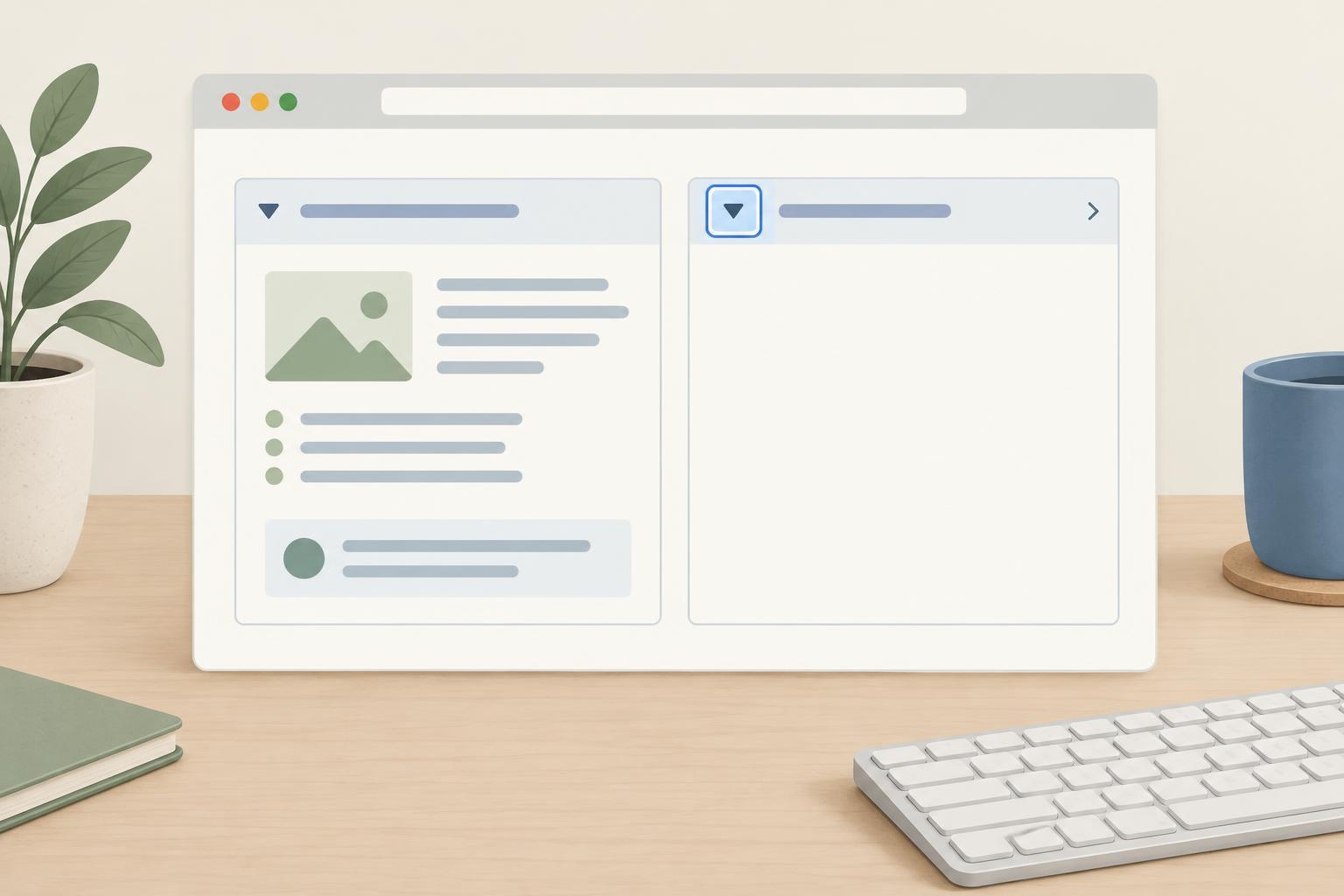
A disclosure is not necessarily an accordion. You can let several panels stay open at once unless the task gives you a good reason to close one when another opens. Avoid adding rules about which panel may be open simply for visual neatness; those rules can make it harder to compare content.
Use details and summary for a straightforward panel
For a simple disclosure, start with the HTML details element and place a summary element first inside it. For example, the summary text could be “Shipping options,” followed by paragraphs describing those options. In a current browser that supports these elements, the browser manages the open state and supplies the summary’s basic keyboard interaction. The content appears when the details element is open.
This approach needs little or no JavaScript. You can add the open attribute when a panel should start expanded, but choose that initial state deliberately. If a page contains several panels, check that their labels still make sense when read without the content beneath them. Keep the summary short and put longer explanations inside the panel.
Browser defaults may differ in appearance. Style the summary so it still looks interactive and retains a visible focus indicator. If you replace the default marker, provide another clear visual cue that the section can expand. Do not rely on a change in color alone to communicate whether it is open.
Build a custom disclosure only when you need its behavior
A custom disclosure may be appropriate when an interface needs behavior that details and summary do not provide conveniently. Use a real button for its control, not a clickable div or a link with no navigation destination. Give the button a descriptive label and an aria-expanded value of true or false that matches the panel’s actual state. An aria-controls value can point to the panel’s unique id, providing an explicit relationship between them.
For a basic implementation in an HTML document with JavaScript enabled, begin with a button whose aria-expanded value is false and a content element with the hidden attribute. On button activation, update both together: remove hidden and set aria-expanded to true when opening; add hidden and set aria-expanded to false when closing. Keep the text and controls inside the content element so they become available along with the rest of the panel.
Use the button’s ordinary keyboard behavior rather than writing separate Enter and Space handlers. Avoid moving focus into the panel merely because it opened; the person may want to open several sections or continue reading from the button. If closing a panel would hide the currently focused element, move focus to a sensible visible location, such as its disclosure button, before hiding it.
Check the states people will actually encounter
Test the page first without a pointer. Tab to each disclosure, confirm the focus indicator is visible, and activate it with the keyboard. When a panel is closed, its hidden links and controls should not be reachable through normal keyboard navigation. When it is open, read through its contents and confirm that closing it does not leave focus in content that has disappeared.
Then inspect both states with a screen reader in an environment available to you. Check that the control has a meaningful name and that its expanded or collapsed state matches what is visible. Test repeated labels particularly carefully: several buttons named “More” may be difficult to distinguish when encountered out of context.
Finally, try the page at narrow widths and with enlarged text. Expanded content should reflow rather than overlap nearby controls, and the disclosure label should remain understandable if it wraps onto multiple lines. These checks apply whether the panel is native or custom: the implementation differs, but readers still need a clear way to find, open, and use the content.