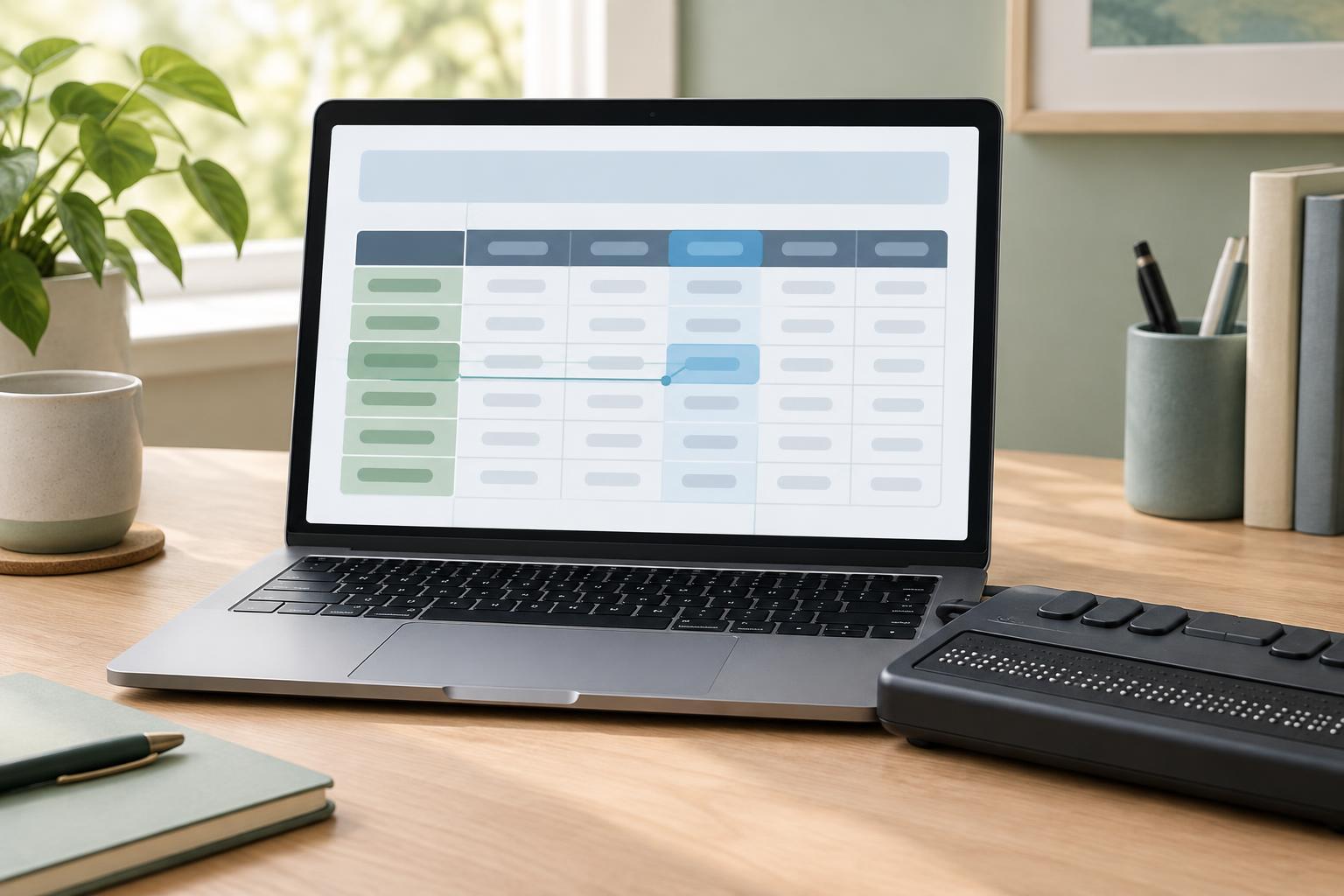
Start with a table that represents data
A data table is useful when readers need to compare values across rows and columns. Imagine a table of workshop places with columns for session, room, and available seats. A reader can scan across a row to learn about one session or down a column to compare rooms. Those relationships are the reason to use a table, rather than a collection of visually aligned text.
For a straightforward table, use a table element containing rows and cells. Put column labels in header cells, usually in the first row, and put the corresponding values in data cells. Do not use a table merely to position unrelated parts of a page. Visual alignment alone does not tell assistive technology which pieces of information belong together.
The examples in this article assume an ordinary HTML document viewed in a modern browser, with no JavaScript required to create the table. CSS may change its appearance, but the underlying row and cell structure should still make sense when styles are removed.
Give the table a useful caption
A caption names the table as a whole. In the workshop example, “Workshop places by session” tells readers what the grid covers before they encounter individual headers and values. Place the caption as the first child of the table element, using the caption element. A nearby page heading may provide broader context, but it does not automatically serve as the table’s caption.
Keep the caption distinct from the column headers. “Workshop places by session” describes the whole table; “Session,” “Room,” and “Available seats” describe individual columns. Avoid captions such as “Table 1” unless another part of the page supplies a meaningful name. If the table needs a longer explanation, put that explanation in surrounding text rather than trying to fit every instruction into the caption.
A caption is especially helpful when a page has several tables with similar columns. Readers can identify the table they want without first working through its cells.
Connect simple headers to their cells
A header cell is marked with the th element. For a simple table whose first row contains column labels, give each of those header cells scope="col". This states that “Room,” for example, applies to the cells beneath it. If the first cell of each later row names that row, make it a header cell with scope="row". A row labelled “Morning workshop” can then provide context for its room and seat count.
Consider a table captioned “Workshop places by session.” Its header row contains “Session,” “Room,” and “Available seats.” The next row contains “Morning workshop,” “Studio A,” and “12.” Mark the three labels in the top row as column headers and “Morning workshop” as a row header. The value “12” then has both a column context, “Available seats,” and a row context, “Morning workshop.”
Do not replace header cells with bold data cells just to achieve the same visual appearance. CSS can make either type of cell bold, but the cell’s HTML role communicates its purpose. Likewise, avoid leaving a header visually present while removing it from the table structure.
Handle grouped headers without losing the relationships
Some tables have more than one header level. A schedule might place “Monday” over separate “Morning” and “Afternoon” columns, with another pair of columns under “Tuesday.” In this layout, the day labels span columns and the time labels sit in a second header row. A spanning cell controls the visual grid, but a visually plausible grid is not enough: each value still needs understandable header context.
For modest groupings, appropriate header cells and scope values may express the intended relationships. In a table with genuinely complex or irregular header associations, assign an id to each relevant header cell and use the headers attribute on each data cell to list the ids of the headers that describe it. For example, a seat count under Tuesday afternoon could reference its session, day, time, and measure headers. This takes more upkeep, so use it when simpler row and column scopes cannot describe the table clearly.
Before adding a complicated header scheme, ask whether the data would be easier to understand as two smaller tables. A separate caption for each table can be clearer than a single grid with many spanning cells. Whichever structure you choose, check that every label applies to the cells it is associated with.
Check the table as content, not just as a picture
Read the table row by row without its CSS. Can you identify what each value measures, and can you distinguish one row from another? Then inspect the table in browser accessibility tools or navigate it with a screen reader available in your testing environment. Support and announcements can vary, so listen for the relevant caption and headers rather than expecting one exact phrase.
Also check keyboard access to any links, buttons, or form controls inside cells. A plain data table does not need JavaScript keyboard handling just to be read, but interactive content must remain operable. If a wide table needs horizontal scrolling on a small screen, keep its table structure intact and make sure scrolling does not hide focused controls. Captions, meaningful headers, and verified cell relationships provide a sound foundation even when the visual layout changes.